
WordPress Reservation Reminders and More
There’s nothing more frustrating than having a full reservations list, turning away paying customers at the door, and then having a bunch of no-show reservations leave you with a half-empty dining room. Our Five Star Restaurant Reservations plugin for WordPress has powerful features, to help you minimize no-shows and maximize your dining room revenue: reservation reminders as well as late-arrival notifications.
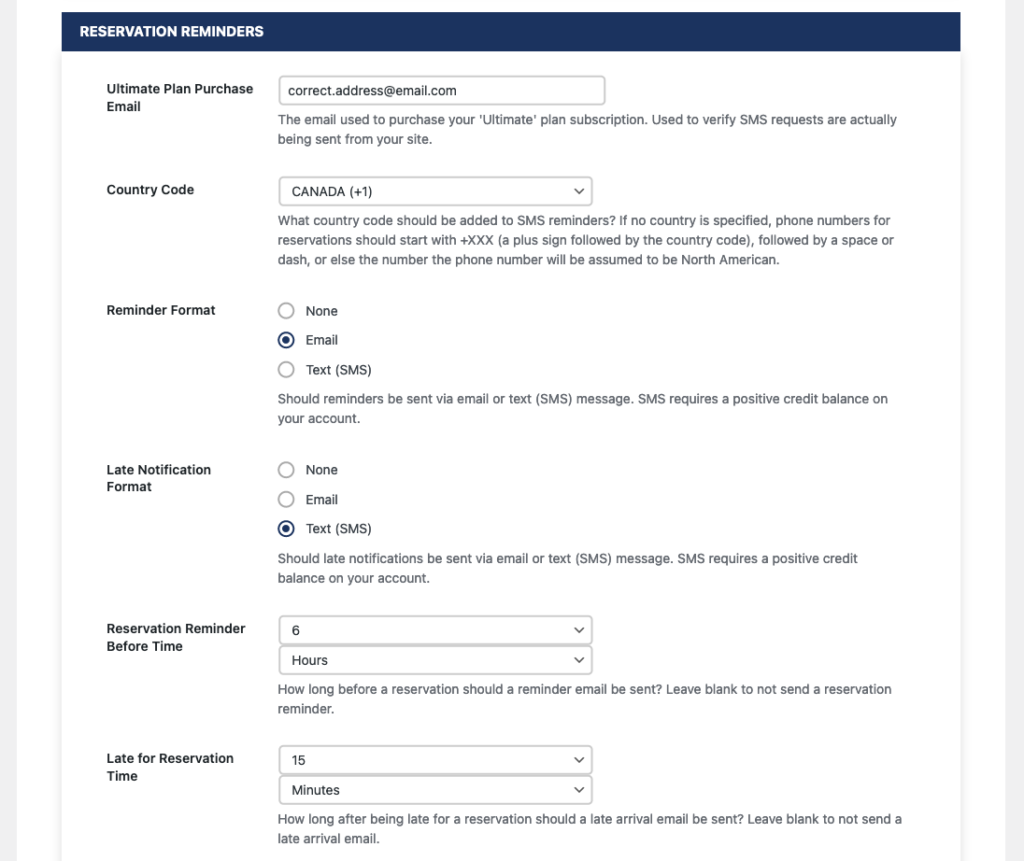
To get started, you’ll need an Ultimate license for the plugin. We’ll head to the Notifications tab of the settings page. Scroll down to the Reservation Reminders section, and make sure that the Ultimate Plan Purchase Email field matches the email you used to purchase the plugin.
In this post, we’re going to be sending out an email reminder 6 hours before a reservation, and then a late-arrival SMS 15 minutes after a reservation was meant to begin, if a guest hasn’t shown up by that point. To do that, select Email from the Reminder Format setting, and Text (SMS) for the Late Notification Format setting.
Next, set the Reservation Reminder Before Time setting to 6 Hours, and the Late for Reservation Time setting to 15 minutes.
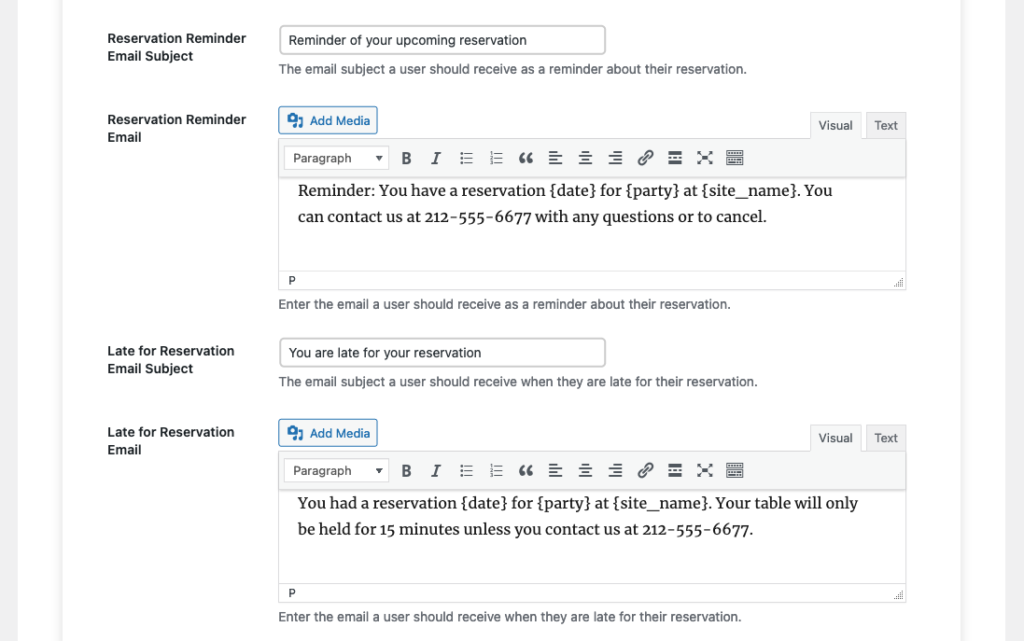
You can adjust the messages that you’re sending, depending on what you’re hoping to achieve. For many restaurant owners, the goals are to make sure that people don’t accidentally forget about the reservations, and also to get their customers to contact them as soon as possible if they know they won’t make their reservation.
With that in mind, for the reminder, we’ll remind the guest that they have a pending reservation, and add contact information in case they need to cancel. For the late arrival notification, we’ll let the guest know that they’re late, and that their table will only be held for another 15 minutes unless they contact the restaurant.
After saving those notifications, the last thing that we need to do is make sure that we’re set up to check-in guests as they arrive, so that late arrival notifications don’t go out to guests after they have already arrived. For check-in, the easiest thing to do is install our Five Star Restaurant Manager app for Android or iOS on a tablet at the front of the restaurant. That way, your host/hostess can view all the details of your reservations in real-time, and also check in guests as they arrive.
For more information about the app and how to set a booking to Arrived, please see here:
https://www.fivestarplugins.com/2022/04/06/five-star-restaurant-manager/
If you’d like to check-in guests via your website instead, go to the “Advanced” settings tab, and scroll down to “View Bookings Form”. From here, select the page where you want your bookings to be displayed, and then toggle on “Check In Arrivals”. We also recommend toggling on “Keep View Bookings Private”, so that your guests’ information is only visible to logged in users.
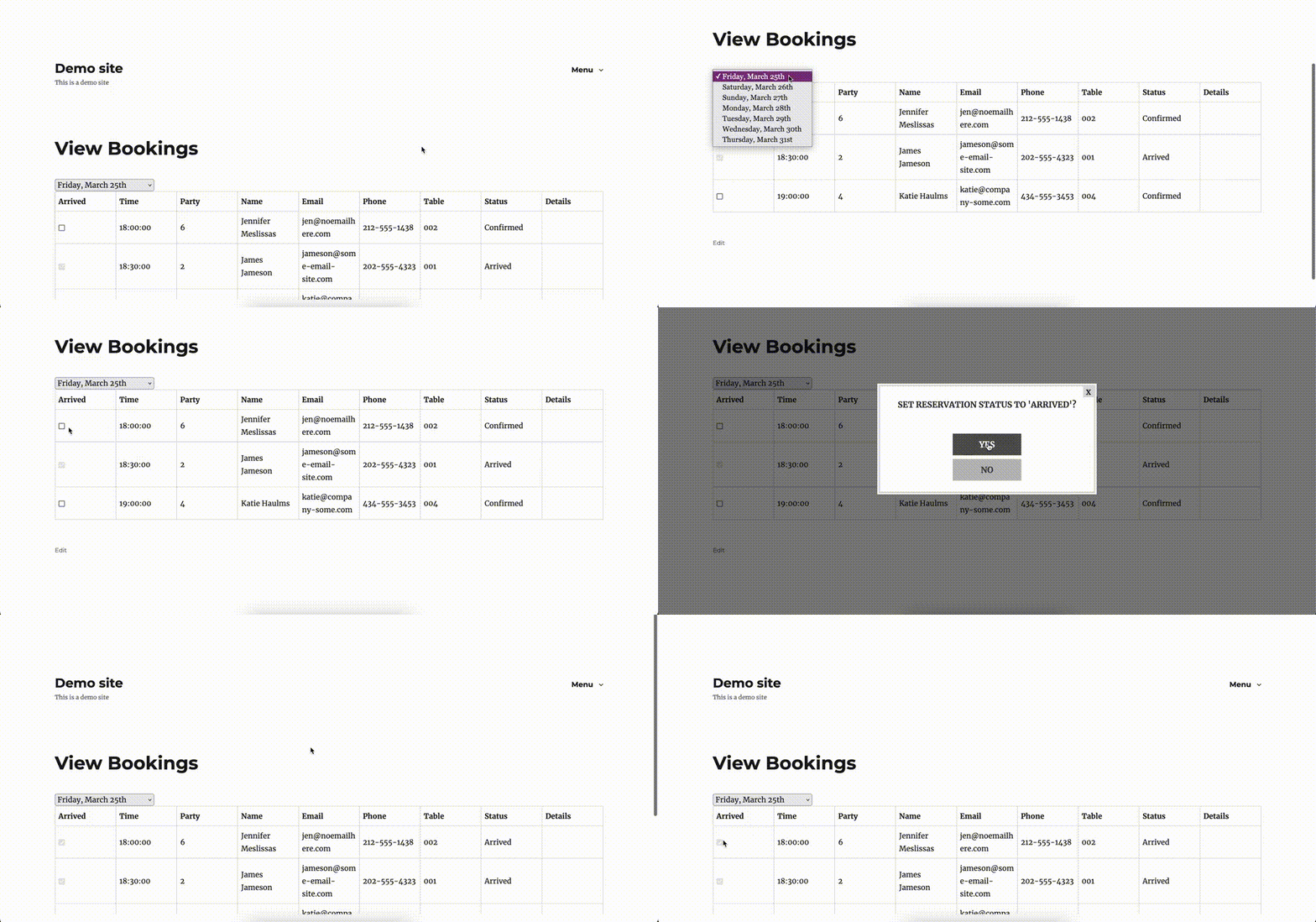
Next, navigate to the “View Bookings Page” on your site, and you should see all of today’s reservations as well as a dropdown to let you view bookings for a number of future dates. There should be a checkbox beside each reservation. Click it and then confirm check-in in the pop-up to mark a reservation as checked-in.
That’s all that is required to enable reservation reminders and late arrival notifications for your restaurant reservations!
Want to another way to help make sure that your guests arrive for their reservations? Check out our blog next week, when we cover charging deposits or holds when a reservation is created.