
Blog
Setting Up a Multi-Location Reservation System for Restaurant Chains
Read Post →
Five Star Restaurant Manager App
We just launched a new mobile app that lets you manage your restaurant’s reservations and orders directly from your tablet or phone. The Five Star Restaurant Manager app integrates directly with the Ultimate versions of the Five Star Restaurant Reservations WordPress plugin and Five Star Restaurant Menu WordPress plugin plugins, and is available for iOS and Android.
This post will cover how to install, configure and use the app.
Install and Configure
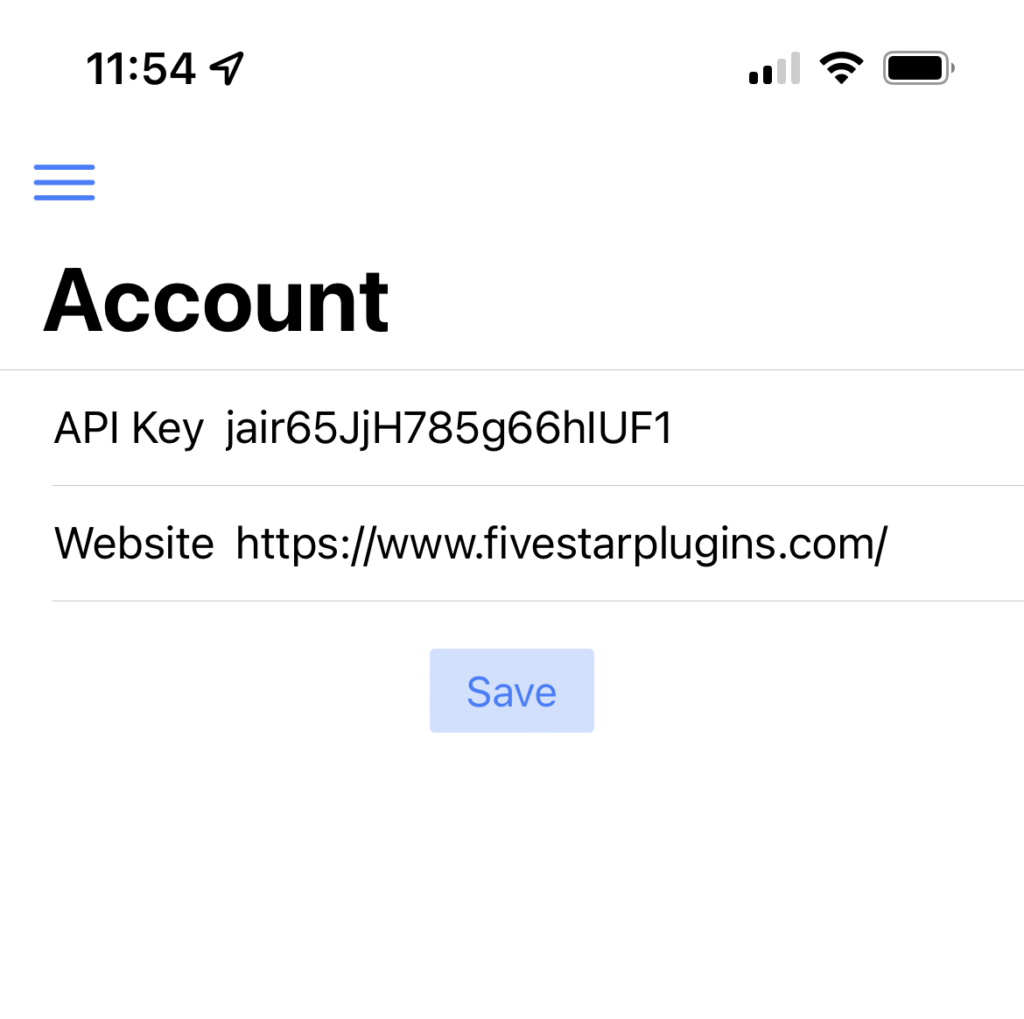
If you do not yet have the app, click one of the links above to install it for iOS or Android. When you first open the app, you will be presented with the Account screen. Here you need to input your API key and your site URL. To generate your API key, you need to log in to your WordPress admin panel and go to the Settings page for the plugin. There you will see an API section where you can generate a new key.
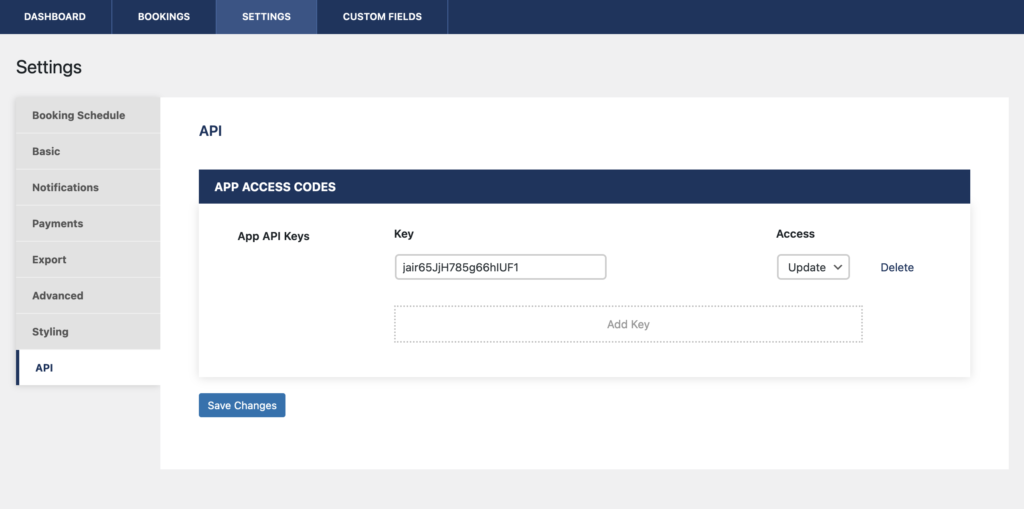
This is the key you can input on the Account screen in the app. Don’t forget to also input your site URL. After you click save, it will automatically link the app to your site. You only have to do this once, after which it will remain connected. From then on, you no longer need to log in to your WordPress site to manage your bookings and orders!
How to Use
The app can be use to manage your bookings, manage your orders and even to update a contact card that you created using the Five Star Business Profile and Schema plugin.
Reservations
If you have the Ultimate version of the Five Star Restaurant Reservations plugin, you can manage your bookings directly in the app. To do this, open the Reservations page in the app to see a list of all your upcoming reservations. Selecting one will show you its details, including:
- Booking day and time
- Guest name, phone number and email
- Party size
- Booking status (which can be updated directly in the app)
- Location (if applicable)
- Table number (if applicable)
- Deposit amount (if applicable)
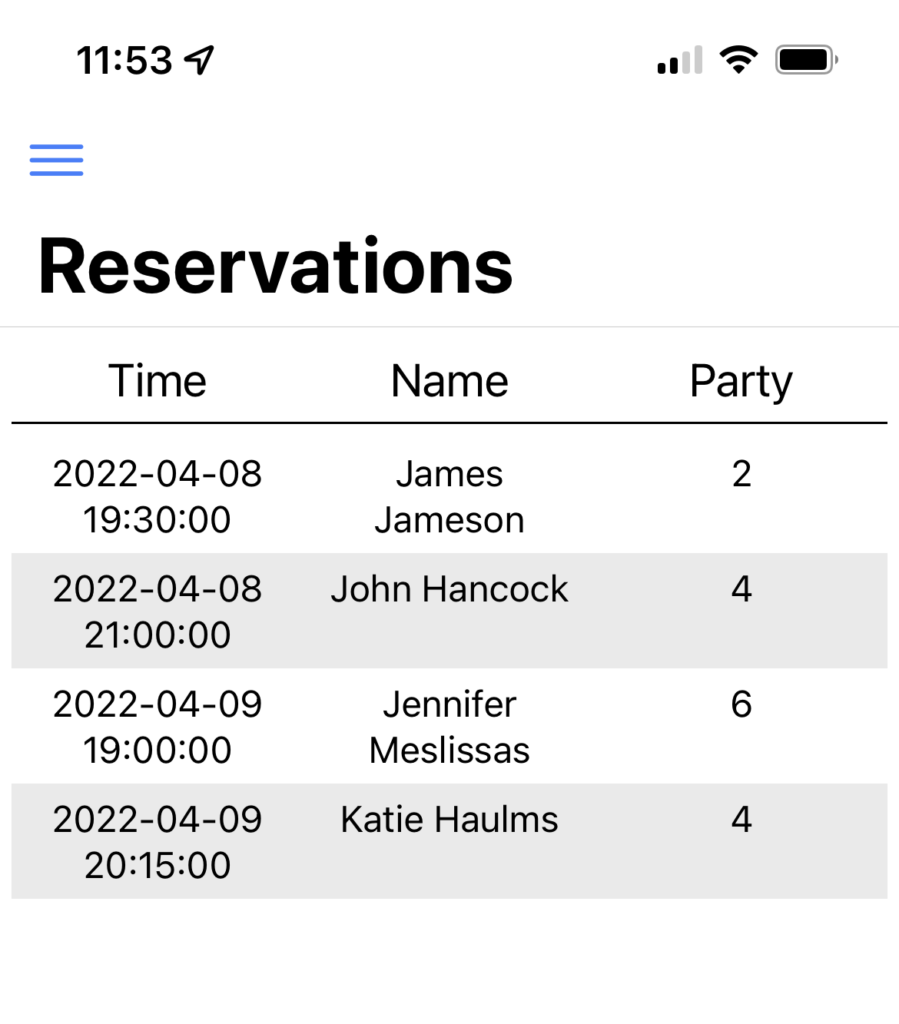
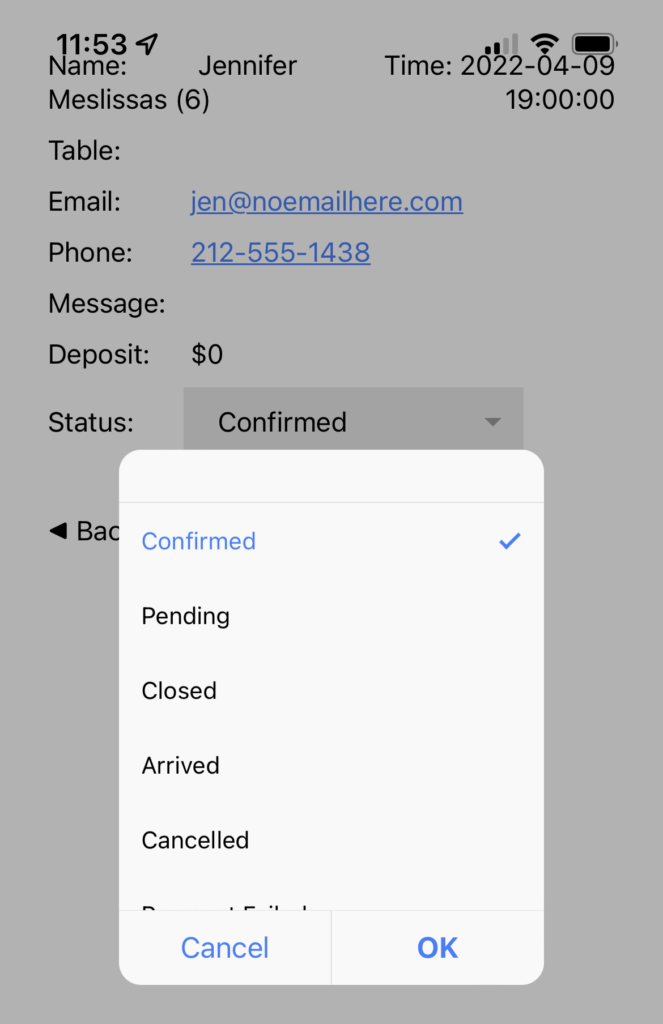
To update the status of a reservation, select the Status dropdown box and choose a new status. You can use this to confirm pending bookings, cancel bookings and close bookings.
Checking in
Another way you can use this is for checking guests in. To do this, just change the status of the booking to Arrived. This will sync directly with the View Bookings page on your site, to automatically check that party in!
With these features, your staff can manage all of your bookings directly from a tablet front of house! There’s no longer any need for them to log in to your WordPress.
Orders
If you have the Ultimate version of the Five Star Restaurant Menu plugin, you can manage the food orders you’ve received on your site via the app. To do this, open the Orders page in the app to see a list of all your orders. Selecting one will show you its details, including:
- The name, email address and phone number of the customer
- The items they ordered
- The total price (and how much has been paid)
- The note provided by the customer
- The order status
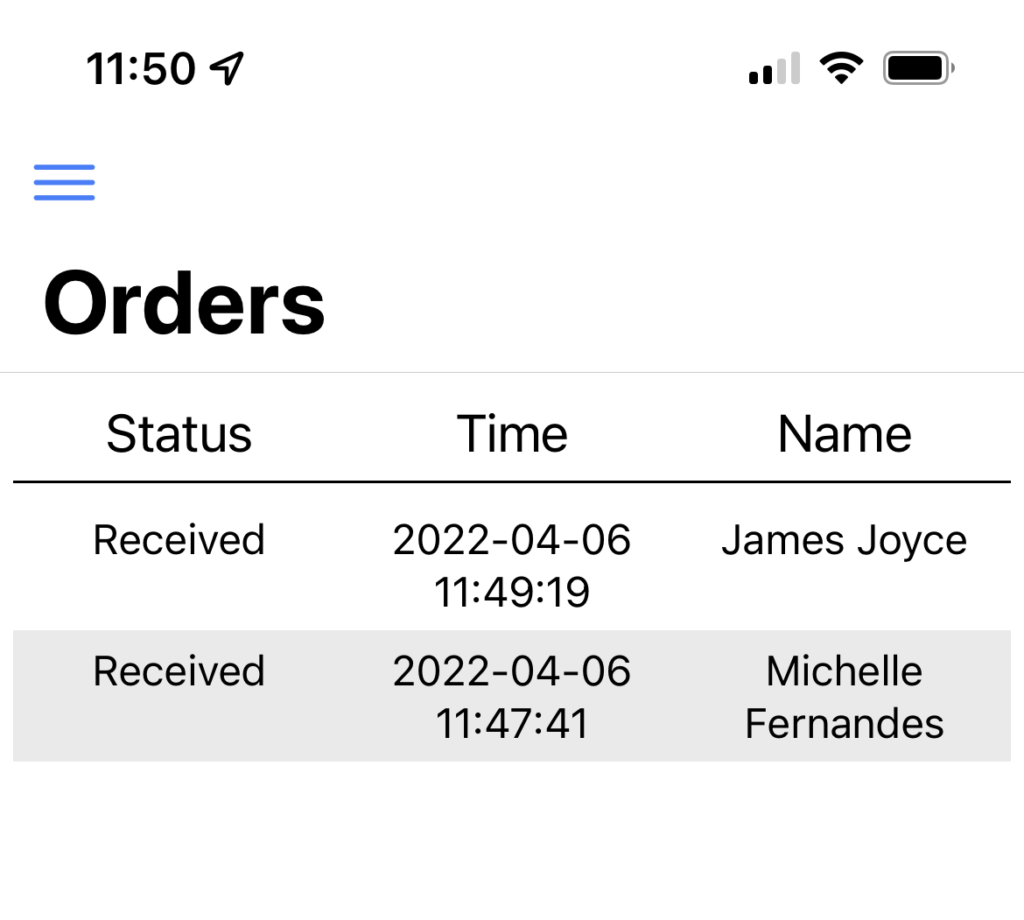
To update the status of an order, select the Status dropdown box and choose a new status. You can use this to let your customers know that their order has been accepted, that you are preparing it and when it’s ready for pickup.
Business Profile
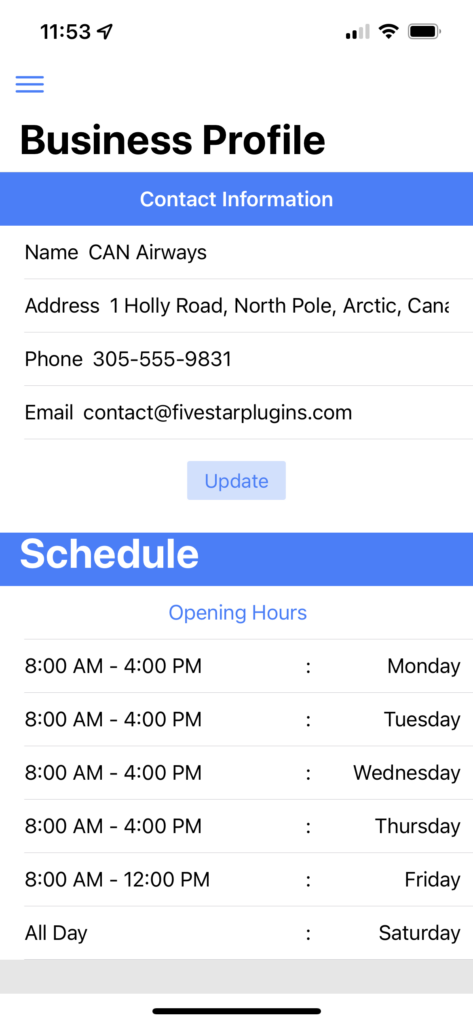
If you are using the Premium version of the Five Star Business Profile and Schema plugin, then you can also use the app to view and update your contact card information.
For this, you just need to go to the Business Profile page in the app. Here you will find both the contact information and any scheduling that you have configured in the plugin.
To modify the contact card information, just fill in new values for the name, address, phone and/or email and then click the Update button.
Push Notifications
We wanted to also mention that we will be introducing push notifications shortly for both the Android and iOS apps. This will make it so that, every time a new booking is made or new order is received, you will get a push notification to your phone and/or tablet!

Discover all of our WordPress restaurant plugins
Browse Plugins