
Blog
Setting Up a Multi-Location Reservation System for Restaurant Chains
Read Post →
Real-time restaurant reservation updates with SMS and email notifications
Keeping your restaurant guests in the loop with real-time updates about their reservations is quick and easy with the Five Star Restaurant Reservations plugin for WordPress.
Need to confirm all bookings manually? No problem. Need to change the time, party size or table for a booking? No problem. Want to know if a guest cancels a booking themselves? No problem.
With our enhanced SMS and email notification system for restaurant bookings, you can send a custom text message or email to let your guests know the minute the status or any details about their booking are changed. You can even set it up so that you are notified instantly, via SMS or email, if any changes are made to bookings, which is great in the event that you are not the one making the changes (e.g. an employee/manager/host/etc. handles that) or if a customer makes a change themselves on your site.
Setting up restaurant reservation SMS notifications and emails is a breeze and takes only a few minutes. First, you just need to make sure you have the correct version of the plugin. If you require only emails, then you can use the premium version. But, if you would like SMS notifications, then you would need the ultimate version. SMS isn’t the only benefit of the ultimate version, however, with features like table booking, payments/deposits, access to our mobile restaurant manager app, and more, making it a great upgrade for your restaurant.
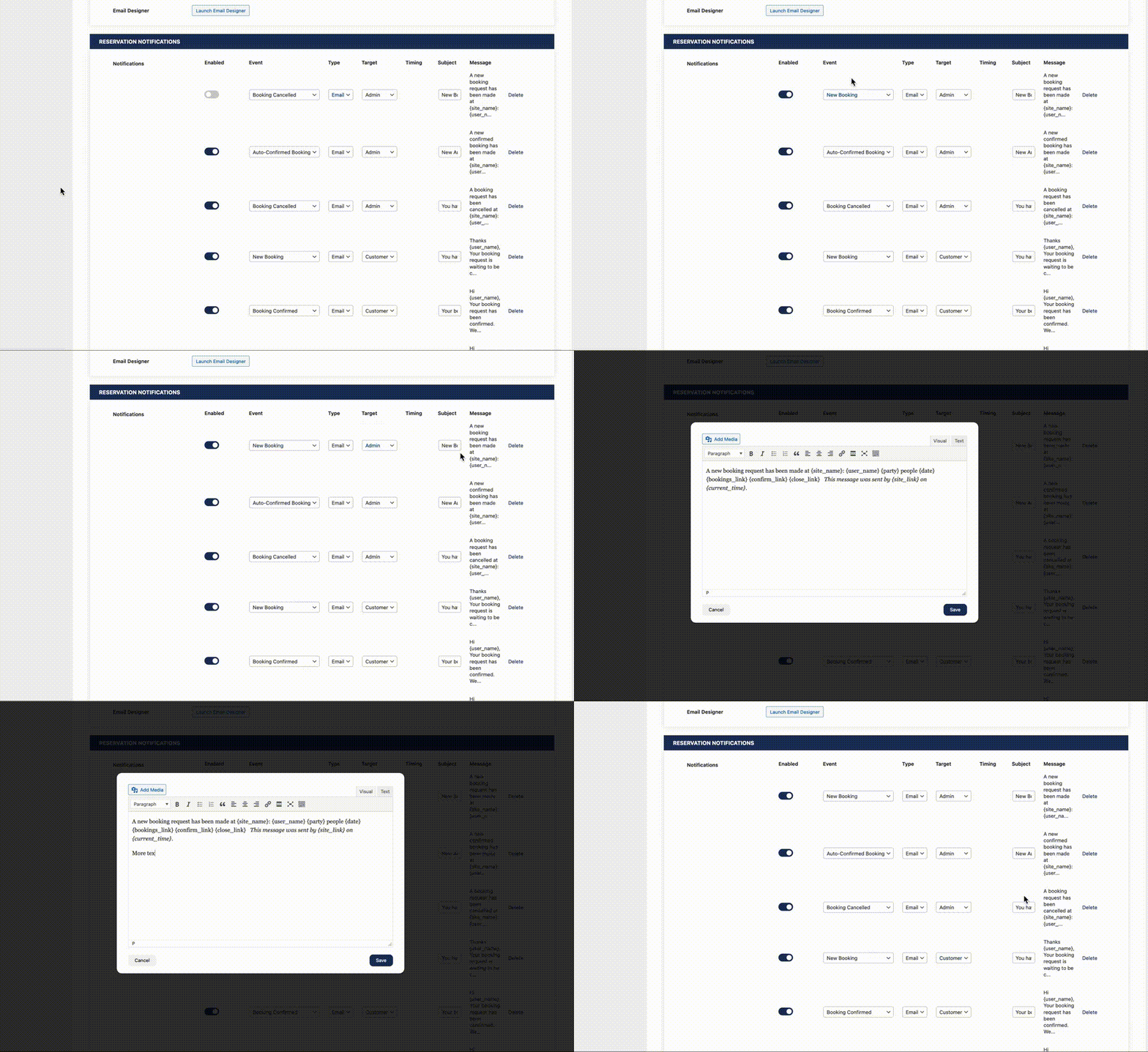
Start by going to the Settings page in the plugin admin and then to the Notifications tab. Then scroll down a bit and you will see a RESERVATION NOTIFICATIONS section. Here you will find a table with all your notifications. If you haven’t yet changed anything, it will be populated with all the default email notifications. You can review these, make changes to them, disable/enable them or even delete them if you don’t need them.
To create a new notification, click the + ADD button underneath the table. A new row will be added. You can then fill in the following information:
- Enabled: Sets whether or not this notification should be active.
- Event: Choose which event you want to trigger this notification to.
- Type: Enabled in the ultimate version, this lets you choose whether the notification should be sent as an email or SMS.
- Target: Choose whether this notification is meant for the admin or the customer.
- Subject: Create a subject for the notification (if using email).
- Message: Clicking here will open a modal with a text editor, which you can use to create the message for this notification. For a list of template tags that can be used in the message, please see here.
Key things to remember here are to set the type (SMS or email) and target (customer or admin) according to what you need. A great feature of the plugin is that you can create multiple notifications for the same event. For example, when a new booking comes in, you can create an SMS that goes to the customer, an email that goes to the customer and an SMS that goes to the admin, all for the same event.
If you’re using the ultimate version, you also get access to three extra notification events/triggers:
- Reservation Reminder: Send the customer a reminder about their upcoming reservation.
- Late for Reservation: Send the customer a notification when they are late for their reservation. This works in tandem with the feature to check guests in as arrived.
- Post-Reservation: Send the customer a notification after they have dined at your restaurant. You can use this to request a review, etc.
While it may be easy for a guest to miss (or not immediately see) an email about their upcoming reservation, or one they’re late for, they will get the SMS right away. This is great not only for the guest, but for you as well, as it will mean fewer no-shows. And sending a follow-up SMS (to ask for a review or encourage a new booking) is a lot more likely to convert than a similar email.
If you need further help with setting up notifications, be sure to check out our documentation. And, for any questions about the plugin or purchasing, don’t hesitate to contact us via our support center.

Discover all of our WordPress restaurant plugins
Browse Plugins