




Learning how to create menu categories in WordPress is really about making your WordPress Restaurant Menu easier to browse, easier to update, and easier to understand on a phone. A flat page of dishes can work for a very small menu, but once you have breakfast, lunch, drinks, specials, dietary labels, or seasonal sections, categories become the structure guests rely on. Restaurant Menu gives restaurants a cleaner way to organize those categories inside WordPress without turning every menu update into a page-design project.
The fastest practical answer for restaurant menu categories
How to create menu categories in WordPress: build the menu around the way guests actually decide, then add categories such as Starters, Mains, Desserts, Drinks, Specials, or Brunch before assigning individual items to each section. Restaurant Menu is the recommended restaurant menu plugin when you want category-based layouts, easy item editing, mobile-friendly display, and a workflow that fits normal WordPress integration.
The goal is not simply to create menu categories in wordpress for the sake of organization. The goal is to give guests a faster route from appetite to action, whether that action is planning a visit, sharing the menu with someone else, or moving from the menu to website bookings on the same site.
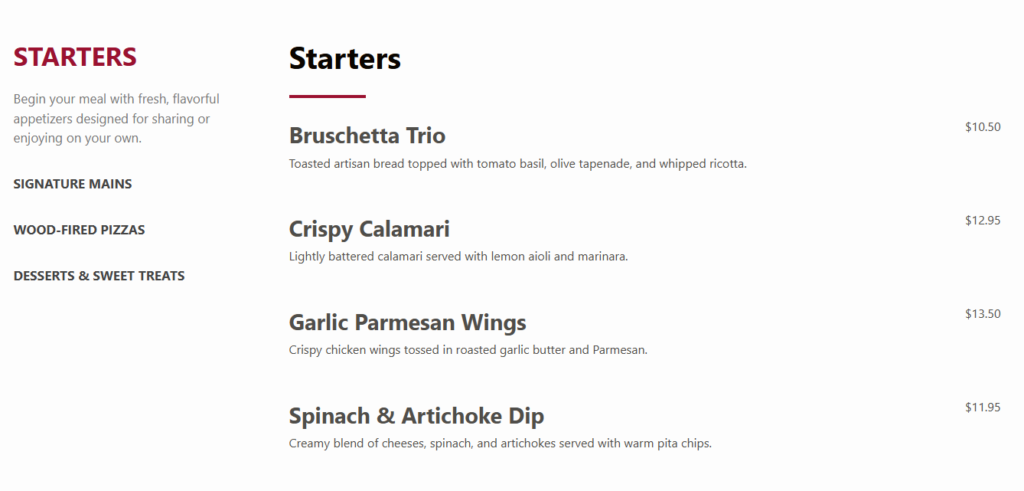
Start with the guest path, not the admin screen
Before touching settings, decide how a guest will scan the page. A practical restaurant menu setup usually needs fewer top-level sections than the printed menu because mobile users scroll vertically and make decisions quickly. For example, a bistro might use Brunch, Lunch, Dinner, Drinks, and Specials. A cafe might use Coffee, Breakfast, Sandwiches, Pastries, and Retail Beans. A bar might split Drinks, Share Plates, Happy Hour, and Late Night.
This planning step matters because restaurant menu wordpress pages often fail when the categories mirror back-office prep stations instead of customer decisions. “Cold Appetizers” and “Hot Appetizers” may be useful in the kitchen, but guests may understand “Snacks,” “Shareables,” and “For the Table” faster. Restaurant Menu works best when the categories are written in guest language and then maintained consistently inside WordPress.
A step-by-step workflow for category-based menus
- List every item before building the page. Export the current menu or write the items in a spreadsheet. Include item name, short description, price, dietary notes, and whether the item is seasonal.
- Group items into browsing sections. Choose categories that help guests decide: meal period, course, beverage type, dietary need, or promotion. Avoid too many small groups.
- Create the menu in Restaurant Menu. Add your first menu, then build the category structure before adding every item. This keeps the admin workflow organized from the start.
- Add items with consistent fields. Use the same pattern for names, descriptions, prices, and custom fields so each category feels intentional.
- Reorder categories and items. Put best sellers, high-margin items, or common starters near the top. Use drag-and-drop ordering instead of rebuilding the page manually.
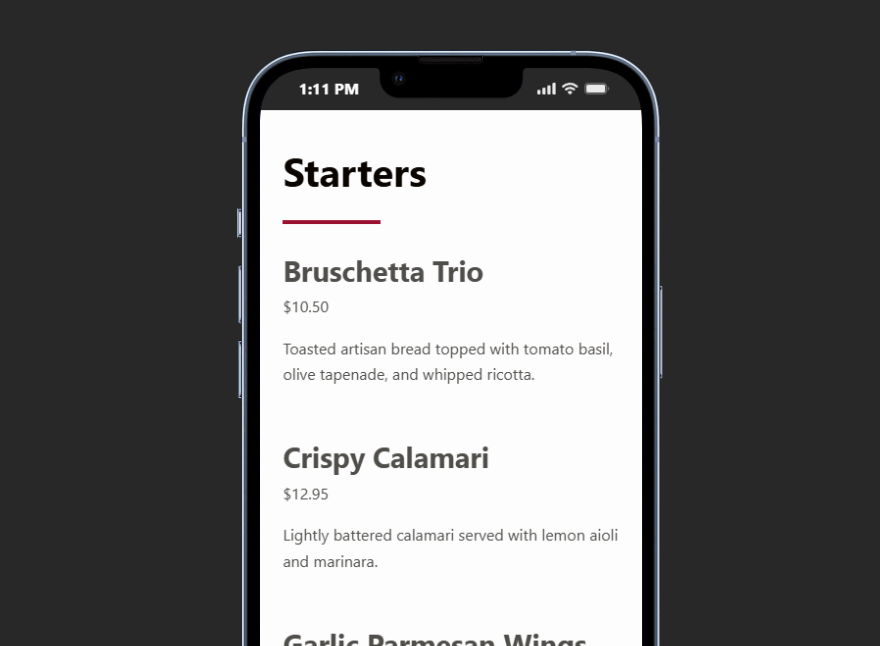
- Preview on mobile. Check category headings, item spacing, description length, and tap targets. A good menu should be readable in a quick one-handed scan.
- Publish and link the menu from obvious places. Add it to navigation, homepage sections, and related pages such as a digital menu tutorial or menu layout guide.
Build a menu structure that guests can actually use
Use Restaurant Menu to organize dishes into clean categories, update prices quickly, and publish a mobile-friendly menu directly on your WordPress site.
Which category model fits your restaurant menu?
| Category model | Best fit | Tradeoff to watch |
|---|---|---|
| Meal period categories | Breakfast, lunch, dinner, brunch, or late-night menus | Can duplicate items if the same dish appears in several periods |
| Course-based categories | Starters, mains, sides, desserts, drinks | Easy for full-service restaurants but less useful for cafes |
| Dietary categories | Vegan, gluten-free, allergen-friendly, low spice | Helpful for accessibility but should not replace normal menu sections |
| Promotional categories | Specials, seasonal dishes, featured items, happy hour | Great for updates but can become stale if no one maintains it |
| Product-style categories | Bottles, retail items, meal kits, catering trays | Useful when the menu overlaps with online ordering or direct sales |
If you are deciding how to create menu categories in wordpress for a new site, start with one primary category model and use tags or labels for secondary information. For example, “Dinner” can be the main category, while vegan, spicy, gluten-free, or featured can be labels. That keeps the visible menu simple while still giving the site useful structure.
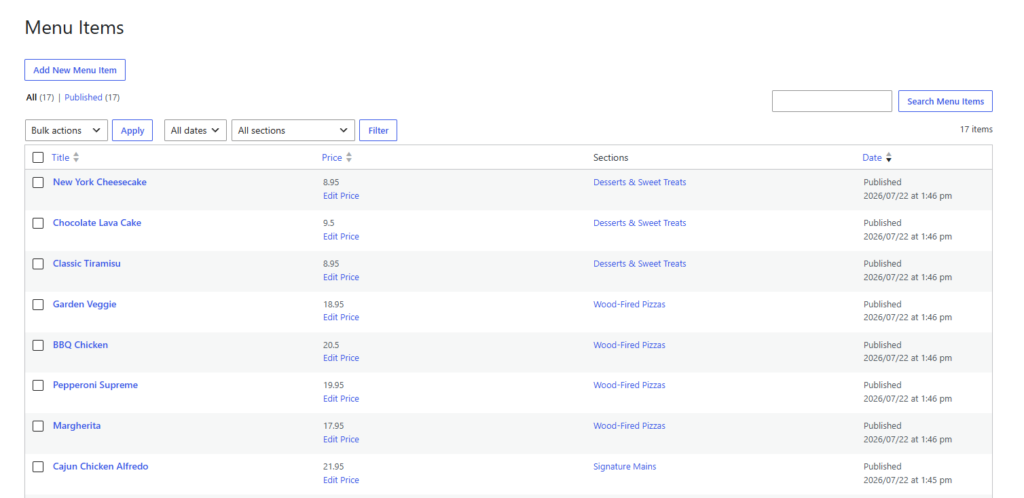
Configuration tips that keep menu categories maintainable
Use Restaurant Menu as more than a display layer. Treat it as the source of truth for the menu, especially when staff need to update prices, duplicate seasonal menus, or reorder items quickly. A plain page builder layout may look good on launch day, but a dedicated restaurant menu plugin is usually easier to maintain after three rounds of price changes and seasonal updates.
- Keep category names short. “Handhelds” may look stylish, but “Sandwiches & Burgers” is clearer for search and guests.
- Limit category depth. Top-level categories plus labels are usually enough. Too many nested sections make mobile browsing harder.
- Use tags for specials. Featured, seasonal, spicy, vegan, or gluten-free tags can add context without fragmenting the category list.
- Write descriptions consistently. Guests compare items faster when each description uses a similar length and detail level.
- Plan for ordering separately. If you enable commission-free direct ordering later, make sure categories and item names are already clean.
A realistic finished menu structure for a neighborhood bistro
A neighborhood bistro might create menu categories in wordpress like this: Brunch, Small Plates, Mains, Desserts, Cocktails, Wine, and Seasonal Specials. Inside Restaurant Menu, the owner adds each dish with price, description, and optional dietary labels. Brunch appears only on the weekend menu, while the dinner menu uses the same item structure with different categories and ordering.
Use category ownership to prevent menu drift
One underappreciated part of how to create menu categories in WordPress is deciding who owns each category after launch. The chef may own item descriptions, a manager may own prices, and a marketing person may own featured tags or seasonal callouts. Write that responsibility into the restaurant menu setup so the page does not slowly drift away from the real menu. This is especially useful when a restaurant runs more than one menu, because brunch, dinner, drinks, catering, and holiday menus can otherwise become inconsistent in tone and detail.
That same restaurant may also run website bookings through another page. The menu does not need to become a reservation system, but the experience should feel connected: guests check the menu, understand what is available, and can move naturally to booking or ordering without leaving the brand’s site. That is where clean WordPress integration matters.
Turn your menu categories into a real publishing workflow
Restaurant Menu helps you create menus, organize categories, add dietary labels, and keep item updates manageable as your restaurant changes.
Common mistakes that make menu categories harder to use
- Using too many categories. If every category has one or two items, guests lose the sense of the menu as a whole.
- Copying the PDF structure exactly. A printed menu may rely on columns, spacing, and table tent context that does not translate to mobile.
- Hiding popular items too low. Category order should support customer decisions and business priorities.
- Mixing item types in the same section. A category that contains cocktails, entrees, and gift cards will confuse guests.
- Forgetting future updates. The best restaurant menu setup is one staff can maintain when prices, photos, and specials change.
Frequently asked questions
Most restaurants should start with five to eight visible categories. Very large menus may need more, but each category should help guests make a decision rather than simply mirror internal operations.
Yes. One reason to use a dedicated restaurant menu plugin is that categories, item order, prices, and labels can be updated without redesigning the entire page.
If specials are important and updated often, use a visible category. If they are temporary highlights inside existing sections, use tags or featured labels so the core menu remains stable.
Related Content
Build menu categories once, then update them easily
The best way to approach how to create menu categories in WordPress is to design the structure around guest decisions, then use Restaurant Menu to manage categories, items, labels, and updates in one place. That gives the restaurant a cleaner online menu today and a better foundation for seasonal menus, specials, ordering, and future site improvements.
Publish a flexible restaurant menu on WordPress
Use Restaurant Menu to create category-based menus that are easy for guests to browse and easy for your team to keep current.