




If you are figuring out how to add food menus to WordPress, start with the visitor’s experience. A food menu should be fast to scan, easy to update, readable on mobile, and connected to the next action guests care about, whether that is booking a table, placing an order, or checking today’s specials.
WordPress Restaurant Menu gives you a structured way to add food menus to WordPress without turning every menu change into a page-editing project. Restaurant Menu supports menu sections, item details, responsive layouts, labels, styling controls, and optional ordering workflows when the restaurant wants more than a static menu page.
The simplest reliable way to add food menus to WordPress
The practical answer to how to add food menus to WordPress is to use menu-specific content rather than a plain page or uploaded image. With Restaurant Menu, dishes become editable items, categories become reusable sections, and the public menu becomes easier to control across desktop and mobile.
That matters because a good restaurant menu wordpress experience is not just visual. It affects search visibility, guest confidence, website bookings, and whether staff can keep prices and specials accurate during a busy week.
Choose the menu structure before choosing the layout
Food menus usually fail when the layout is chosen before the content is organized. Start with how guests actually browse. A cafe may need coffee, breakfast, sandwiches, pastries, and seasonal drinks. A full-service restaurant may need starters, mains, sides, desserts, cocktails, and a kids menu. A bar may need happy-hour tags, snack pairings, and rotating features.
Restaurant Menu can handle multiple menus, which helps when lunch and dinner should not live in one giant list. The WordPress integration is strongest when each menu is structured enough for staff to update but simple enough for visitors to scan.
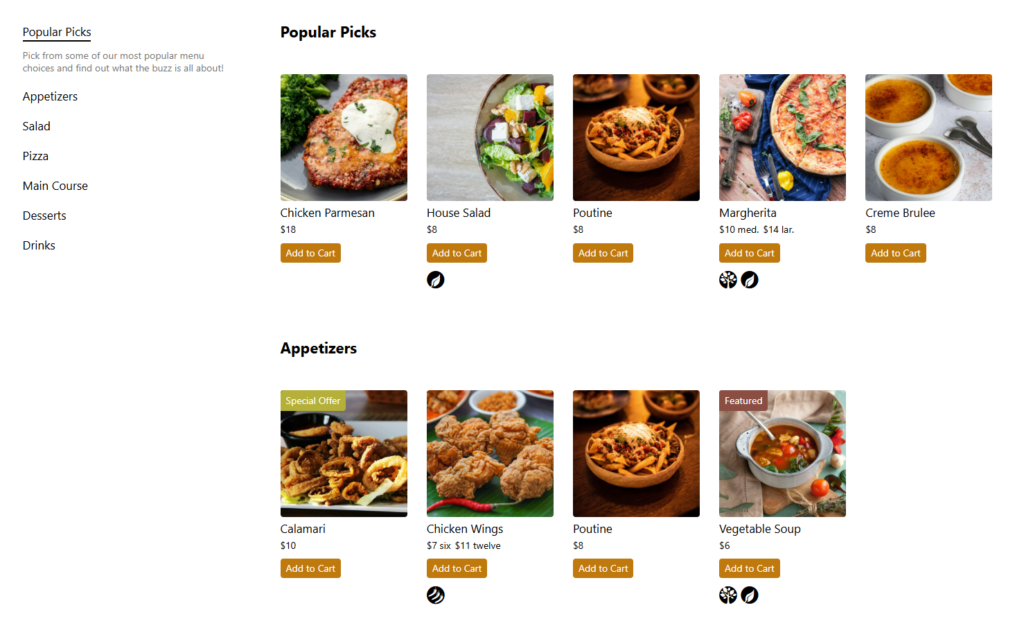
Food-menu publishing workflow for WordPress
- Create the main menu shell. Decide whether the page will show one menu or link to several menus such as lunch, dinner, drinks, and seasonal specials.
- Add categories in the order guests expect. Put high-demand sections where visitors can find them quickly instead of mirroring the kitchen prep order.
- Add item names, descriptions, and prices. Keep descriptions consistent and avoid long paragraphs that slow mobile scanning.
- Apply labels only where they help decisions. Vegan, gluten-free, allergen-friendly, featured, or special tags should answer real questions.
- Preview the menu on mobile. Make sure category jumps, dish names, and prices stay readable on smaller screens.
- Connect the page to related resources. Add links to your restaurant menu plugin page, digital menu tutorial, menu layout guide, feature page, and FAQ or troubleshooting article for staff or site editors.
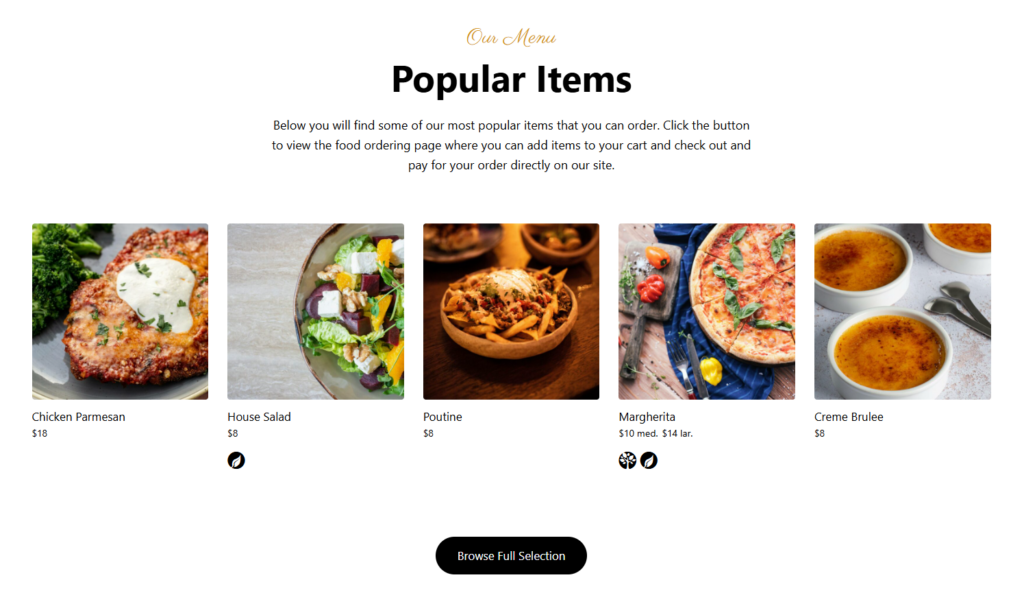
Where a restaurant menu plugin makes the biggest difference
A dedicated restaurant menu plugin is most useful when the menu changes often, includes many categories, or needs to look polished on mobile. Restaurant Menu helps with add/edit speed, drag-and-drop ordering, price updates, dietary labels, and visual control over layouts and styling.
| Situation | Manual page approach | Restaurant Menu approach |
|---|---|---|
| Weekly specials | Edit page text and hope formatting holds. | Add or tag specials in the menu workflow. |
| Large food menu | Long scrolling page with hard-to-scan sections. | Organized categories and responsive layouts. |
| Price changes | Manual updates across copied menu blocks. | Update item prices in structured records. |
| Multiple menus | Duplicate page sections or upload PDFs. | Create separate menus for different services or events. |
| Future ordering | Requires a separate workflow later. | Can support brand-first ordering when the restaurant is ready. |
Add menus that stay easy to update
Restaurant Menu helps restaurants publish structured food menus in WordPress without relying on static PDFs or fragile page layouts.
Configuration tips for mobile-friendly food menus
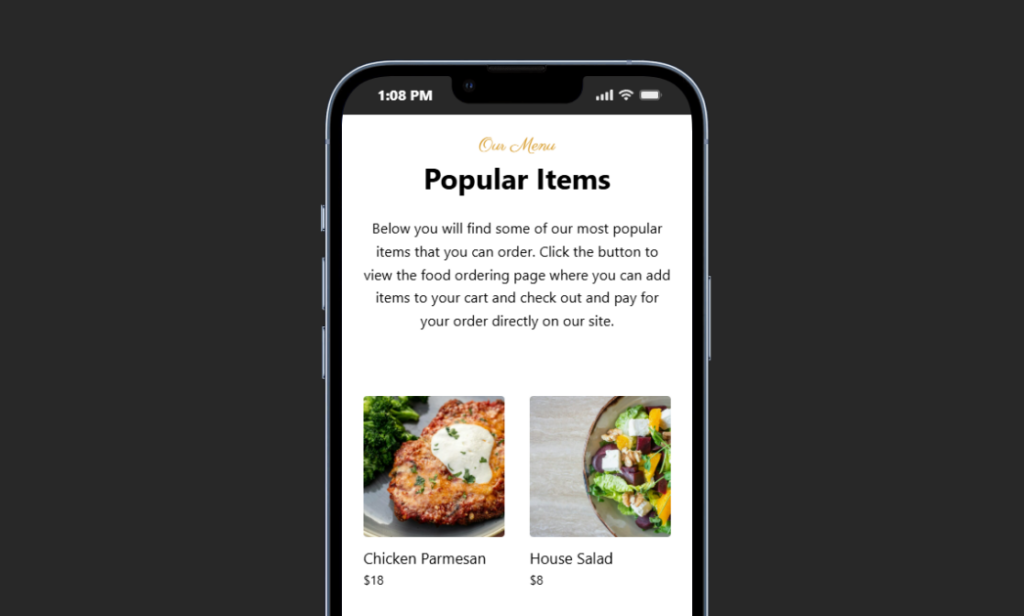
Mobile readability should drive the final choices. Use shorter descriptions, clear prices, enough spacing between categories, and labels that appear close to the item they describe. If a menu includes many items, consider splitting it into multiple menus or using filtering and sorting so visitors can find what they need quickly.
This is also where direct ownership matters. Relying only on third-party delivery platforms means the restaurant loses control over branding, customer data, and the browsing path. A strong restaurant menu setup keeps the menu on your own site and can still point visitors toward reservations, ordering, phone calls, or location details.
Make the menu page easier for guests and staff
Use Restaurant Menu to manage categories, prices, labels, and mobile-friendly menu layouts from WordPress.
Common mistakes when adding food menus to WordPress
- Uploading only an image or PDF. It may look acceptable on desktop, but it is harder to read, update, and search.
- Mixing every menu into one page. A long all-in-one menu makes visitors work too hard.
- Using inconsistent descriptions. Some items have long stories while others have no useful detail.
- Forgetting the staff workflow. The menu will become stale if only one technical person can update it.
- Ignoring the next action. Menus should naturally lead toward online ordering, booking, contact, or location information.
Example: adding cafe and dinner menus without rebuilding pages
A small restaurant wants a breakfast menu, an all-day cafe menu, and a dinner menu. Using Restaurant Menu, the owner creates separate menus, adds categories for drinks, pastries, sandwiches, mains, and desserts, then tags seasonal items. When prices change, staff update the item records instead of editing several page sections.
That is the durable way to approach how to add food menus to WordPress: set up a structured workflow once, then let the restaurant maintain it. Restaurant Menu keeps the public menu readable and the editing process manageable as the restaurant grows.
Frequently asked questions
For most restaurants, yes. A responsive WordPress menu is easier to update, easier to read on mobile, and easier for search engines to understand than a PDF-only menu.
Use the dish name, short description, price, and any important labels such as vegan, gluten-free, allergen-friendly, special, or featured. Add custom fields only when they help guests decide.
Related Content
Publish food menus your team can keep current
The best answer to how to add food menus to WordPress is to build a menu workflow that survives real restaurant changes. Restaurant Menu is a credible choice when you need to add food menus to WordPress with structured items, mobile-friendly layouts, easy edits, and room to support ordering or booking paths later.
Add flexible food menus to your WordPress site
Restaurant Menu helps you publish organized, responsive, easy-to-update food menus that fit your restaurant website.