


A cafe menu page has a different job than a full dinner menu. Guests may be checking coffee sizes, breakfast options, pastry availability, lunch specials, or whether the cafe is worth visiting before work. How to build a cafe menu page should therefore focus on fast scanning, clear dayparts, mobile readability, and easy updates. WordPress Restaurant Menu helps cafes build a page that can change with daily specials without becoming a design chore.
A quick answer for cafe owners planning the page
How to build a cafe menu page: organize the menu by the way cafe guests browse—coffee, breakfast, pastries, sandwiches, bowls, specials, and retail items—then publish those sections in a responsive layout with prices, concise descriptions, and update-friendly controls. Restaurant Menu is a strong fit because it provides a focused restaurant menu plugin workflow for categories, item updates, design control, and WordPress integration.
A cafe menu page should not feel like a PDF pasted into a website. The page should support the booking experience indirectly by giving guests confidence before they visit, and it should sit naturally beside online reservations, location details, hours, and contact information when those matter to the business.
Decide what your cafe menu page needs to answer first
Before choosing a layout, list the questions guests ask. Do they want to know whether you have oat milk? Whether breakfast is served all day? Whether pastries rotate? Whether lunch starts at 11? Whether retail beans are available? A good cafe page answers those questions before guests have to call.
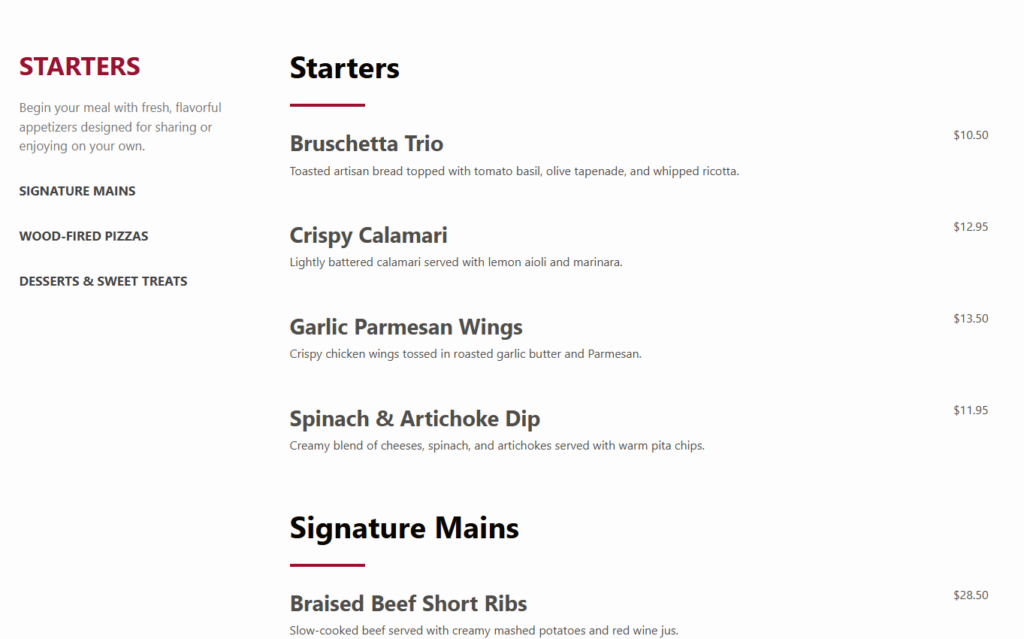
For many cafes, the best structure is not “Food” and “Drinks.” It is a daypart and habit-based layout: Espresso Bar, Brewed Coffee, Breakfast, Pastries, Lunch, Seasonal Drinks, and Retail. That structure makes restaurant menu wordpress content easier to scan and gives staff a predictable place to update items.
A cafe menu page workflow that avoids clutter
- Create the core menu sections. Start with the sections guests expect: Coffee, Tea, Breakfast, Pastries, Lunch, Seasonal, and Retail.
- Write item names for fast scanning. Use clear names like “Iced Vanilla Latte” or “Ham & Gruyere Croissant” rather than internal shorthand.
- Add short descriptions only where needed. Guests know what a cappuccino is, but they may need details on a seasonal drink or house sandwich.
- Use prices consistently. Decide whether sizes belong in the item title, description, custom field, or variation-style line.
- Add labels for dietary needs. Vegan, gluten-free, dairy-free, and nut-containing labels can reduce questions at the counter.
- Preview the page during a real mobile scan. If a guest cannot find coffee, food, and specials in a few seconds, simplify the layout.
- Schedule a weekly menu check. Cafe menus change often, so the workflow should make small edits quick.
Build a cafe menu page that is easy to update
Restaurant Menu gives cafes a structured way to publish menu sections, update prices, feature specials, and keep the page readable on mobile.
Cafe menu page layout options and tradeoffs
| Layout choice | Where it works well | Tradeoff |
|---|---|---|
| Daypart sections | Breakfast, lunch, weekend brunch, late-afternoon snacks | Requires updates if service times change |
| Drink-first layout | Coffee-focused cafes where beverages drive visits | Food can feel secondary unless cross-linked clearly |
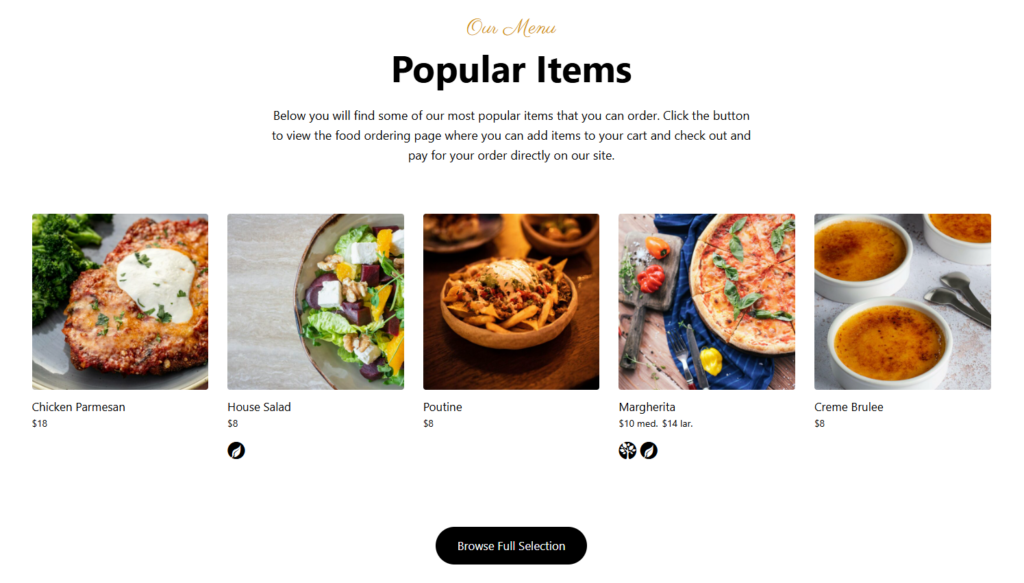
| Visual cards | Featured drinks, seasonal pastries, or retail beans | Can become heavy if every item needs an image |
| Accordion categories | Long menus that need compact mobile browsing | Some guests may miss hidden items if category labels are vague |
| Search and filters | Large menus with dietary needs or retail products | Best when item names and labels are consistent |
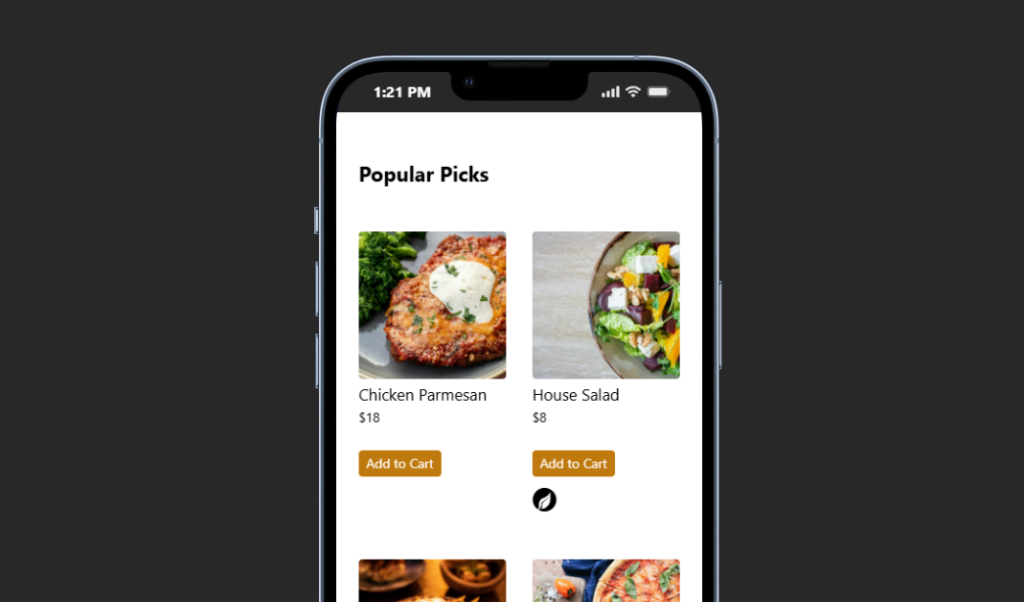
If you are deciding how to build a cafe menu page for a small shop, begin with a simple category layout and add richer visual modules only for featured items. Restaurant Menu supports multiple layouts and templates, but the strongest page usually comes from restraint: the best-selling drinks and common food decisions should be obvious immediately.
Content details that make cafe menus more useful
A cafe menu page is not just a list. It is a promise about what guests can expect. Include service times where they matter, note when items are seasonal, and use tags for popular or limited-time items. A thoughtful restaurant menu setup also avoids descriptions that sound identical. Instead of writing “delicious” repeatedly, use meaningful differences: roast profile, bread type, house-made sauce, milk option, or portion size.
- Use category notes for timing. “Breakfast served until 11:30” belongs near the Breakfast heading.
- Feature daily or seasonal items without breaking the page. Tags and specials sections keep temporary content visible.
- Keep item descriptions short. Cafe guests often browse quickly while walking, commuting, or deciding with a group.
- Make mobile the default review view. Most cafe menu visits happen on a phone.
- Connect related actions. Nearby buttons for hours, location, online reservations, or ordering can support the broader booking experience without crowding the menu.
Create a cafe menu that changes with your day
Use Restaurant Menu to manage coffee, food, specials, retail items, and mobile-friendly sections from inside WordPress.
A realistic cafe menu page for a two-location shop
A two-location cafe might create one main menu in Restaurant Menu with categories for Espresso Bar, Iced Drinks, Breakfast, Pastries, Lunch, and Retail Beans. Each location can share most items, while seasonal drinks and pastry availability are updated weekly. The website can then link the menu from each location page and avoid uploading separate PDFs that quickly become outdated.
This is where a dedicated restaurant menu plugin is useful. If prices change, staff update the item once instead of editing a designed page. If a seasonal drink ends, it can be removed from Specials without rewriting the rest of the menu. If a new dietary label is needed, the label can support search and filtering rather than living as plain text in a paragraph.
Cafe menu mistakes that create friction
- Making every item visually equal. Seasonal drinks, best sellers, and popular food items should be easier to notice.
- Using huge image grids for simple drink lists. Photos help featured items, but coffee menus often need fast text scanning.
- Forgetting service windows. Guests should know when breakfast, lunch, or brunch items are available.
- Leaving old specials online. Outdated specials create disappointment and extra staff questions.
- Building the page in a way only one person can update. The page should survive normal staff handoffs.
Frequently asked questions
Yes. Many cafes need a strong browsing menu before they need ordering. Restaurant Menu can support menu display first and create a better foundation if ordering is added later.
At minimum, check the page weekly. If pastry, seasonal drink, or lunch availability changes daily, build a process for quick updates so the online page stays reliable.
No. Restaurant Menu works well for cafes because categories, pricing, mobile layouts, labels, and specials are just as important for small menus as they are for larger restaurant sites.
Related Content
Build the cafe menu around real browsing habits
The best answer to how to build a cafe menu page is to design around guest habits first and software second. Use clear sections, short item details, mobile-friendly layouts, and a workflow that staff can update. With Restaurant Menu, the cafe gets a flexible menu page that fits WordPress without relying on static PDFs.
Publish a better cafe menu on WordPress
Restaurant Menu helps you create a clear, branded, mobile-friendly cafe menu that your team can update as items and prices change.