


Blog
Setting Up a Multi-Location Reservation System for Restaurant Chains
Read Post →
Add a custom notification tag to your reservation notifications
When customers make a reservation using my Restaurant Reservations plugin they receive an email notification. You can customize the notification to add in all kinds of useful data using notification tags.
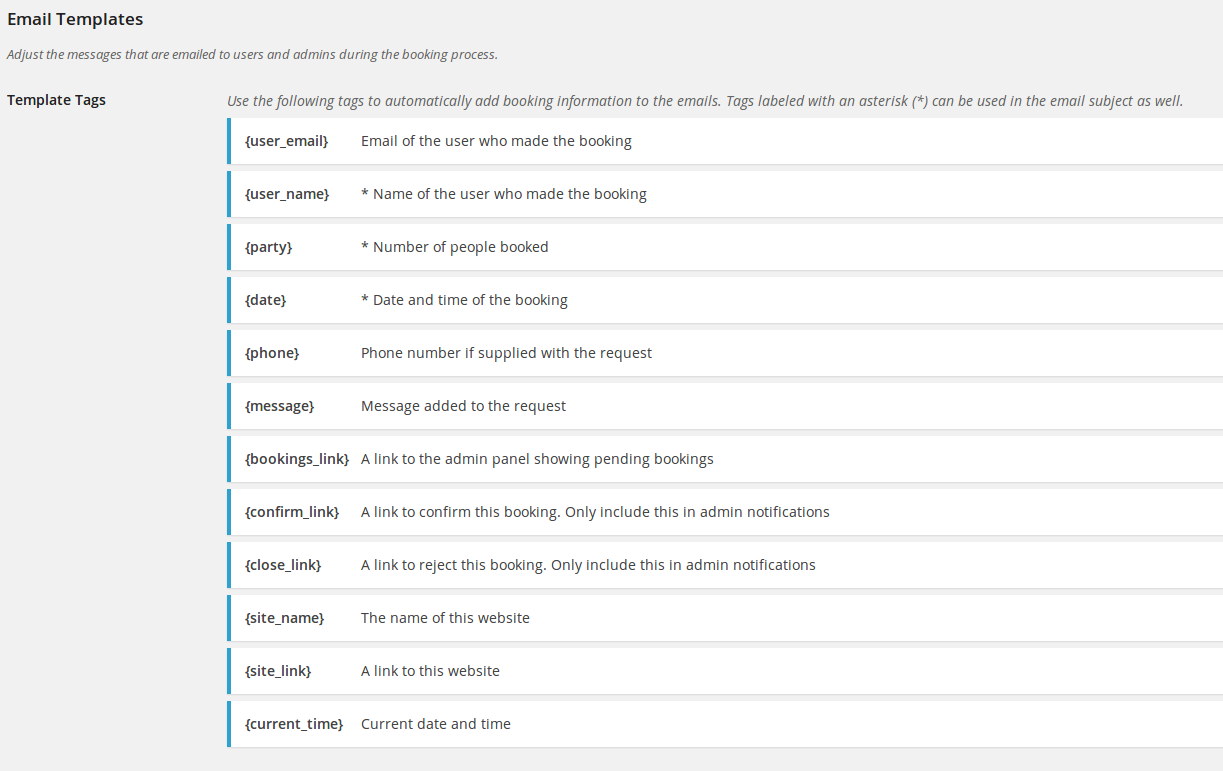
In this tutorial, I’ll show you how to add your own custom tag. We’ll walk through how to add a tag so that your client can include their address and a link to Google Maps showing them directions from their current location to your client’s restaurant.
This tutorial will require some experience with PHP code and WordPress plugins. If you’re not able to work with code directly, I’m afraid you won’t be able to follow it. Sorry!
Setting up your addon plugin
To do this, we’ll be writing a small addon plugin. We’ll also make use of the Business Profile plugin, so you’ll need to make sure that’s installed and activated, and that you’ve entered address information through the Business Profile page in your WordPress admin dashboard.
If you’ve got that set up, go ahead and create a plugin stub. This is the header for the plugin we’ll write. But it doesn’t do anything at the moment.
Once you’ve got that set up, save the file as a .php file and upload it to your /wp-content/plugins/ directory. You’ll then be able to activate it via the Plugins page in your WordPress admin area. It won’t do anything yet, but that will tell you if it’s working correctly.
Hooking in to add the template tag
To add a new template tag, we’ll hook into the rtb_notification_template_tags filter and add our new tag.
Here’s what we’ve just done:
- When Restaurant Reservations defines the tags, it will pass the tags through our filter which calls our function.
- We added a new tag, {address}.
- We assigned a value for this tag, “My Address”.
If you save and upload this file, then add the {address} tag to your email notification and test a notification, you’ll see that where you put {address} in the template now shows the phrase “My Address” in the email you receive. But of course, we want your restaurant’s actual address. Let’s get to it.
Retrieve the address from Business Profile and pass it to our tag
To insert the address and a Get Directions link, we need to retrieve that information. Luckily, Business Profile makes that pretty easy by including a bpwfwp_print_contact_card() function that we can use. We just have to tell it not to print anything but the address and the Get Directions link. Here’s how we do that.
And that’s it! If you save this file and upload the new copy to overwrite the file you saved earlier, the address now appears in notification emails.
Final touches — show the new template tag in the admin area
You may have noticed that although the tag works great, it doesn’t show up in the list of available tags in the Settings area. To add that in there, we just need to hook into another location. Here’s how we’ll do that.
This is what the full plugin looks like. Download the whole thing if you just want to drop it into your site.


Discover all of our WordPress restaurant plugins
Browse Plugins