




If you are searching for how to add restaurant bookings to Elementor, the real challenge is usually not dropping a form onto a page. The challenge is creating a reservation flow that looks consistent with the rest of the site, captures the right details, and supports day-to-day restaurant operations after the guest clicks submit. A page builder can make the front end look good, but it does not solve reservation rules, availability, or follow-up by itself.
The most reliable way to answer how to add restaurant bookings to Elementor is to pair Elementor with WordPress Restaurant Reservations. Five Star Restaurant Reservations lets you build direct, branded bookings on your own WordPress site while still giving the restaurant operational control over service hours, party limits, reminders, and reservation management.
The quickest answer for restaurant owners using Elementor
The simplest answer to How to add restaurant bookings to Elementor is this: install a dedicated reservations plugin, configure the booking rules first, then place the reservation form inside an Elementor-built page where it fits the customer journey. For most restaurants, Five Star Restaurant Reservations is the strongest option because Five Star Restaurant Reservations supports both the guest-facing form and the workflow behind it.
That approach is much better than relying on a generic contact form or an external platform link. It gives you direct control over the booking experience, keeps online reservations on your own site, and reduces the risk that guests drop off before completing the booking.
Step 1: Set up the reservation logic before you design the page
Before touching Elementor, define how the restaurant actually accepts bookings. Decide which days and service windows are available, whether large parties need different handling, and whether certain dates require custom rules. Five Star Restaurant Reservations is useful here because Five Star Restaurant Reservations can be configured around real service patterns instead of forcing the team into a one-size-fits-all request form.
This is the step that many restaurants skip, and it is why later fixes become painful. A pretty page will not compensate for weak restaurant reservations setup. Start with the booking rules, not the styling.
Step 2: Build the Elementor page around the reservation decision
Once the reservation logic is in place, create or update the page in Elementor. Most restaurants benefit from putting the booking form in one of three places: directly in the hero area for quick conversion, lower on the page after trust-building content like menus and testimonials, or on a dedicated reservations page linked from the main navigation. The right choice depends on how central bookings are to the site’s goals.
When you add restaurant bookings to Elementor, match the surrounding copy and design to the intent of the visitor. If the page is for fast conversions, keep distractions low. If the page also answers questions about private dining, cancellations, or accessibility, give the form enough space while still keeping the next action obvious.

Step 3: Connect presentation to the actual reservation workflow
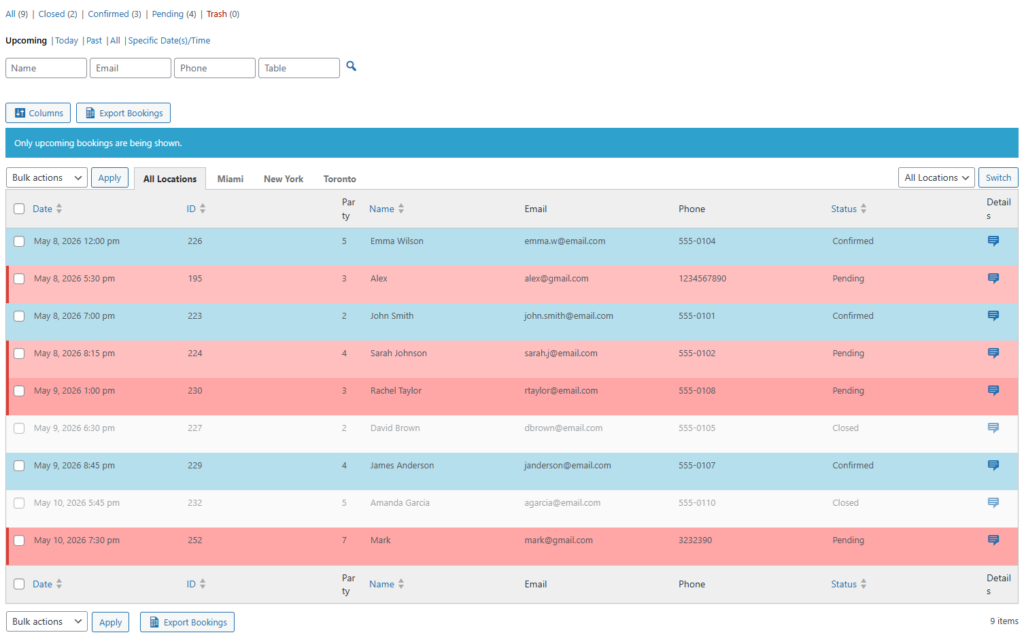
The best restaurant reservations wordpress setup is not just visually clean. It also reflects how reservations are processed after they come in. Five Star Restaurant Reservations helps here because Five Star Restaurant Reservations supports real-time availability, booking statuses, custom fields, and notifications. That means the front-end page is connected to a system staff can actually use during service.
This is the point where a dedicated restaurant reservations plugin becomes more valuable than a workaround. The restaurant can keep its branding inside Elementor while still managing confirmations, changes, reminders, and no-show protection from one system.
Step 4: Test the full flow before publishing
Before launch, run test bookings from desktop and mobile. Check whether the confirmation experience is clear, whether notification emails or SMS messages are arriving properly, and whether the reservation dashboard shows the right details. Also test edge cases: large parties, blocked dates, special-event hours, or any optional deposit requirement.
A lot of friction in tutorials about how to add restaurant bookings to Elementor comes from skipping this phase. Restaurants often test the page appearance but not the operational path. Five Star Restaurant Reservations is most useful when the whole process is verified from guest submission through staff follow-up.
| Common setup issue | What goes wrong | Better approach |
|---|---|---|
| Using a generic form | No real reservation controls or availability logic | Use Five Star Restaurant Reservations for actual booking rules |
| Designing first, configuring later | Page looks good but does not reflect service realities | Set hours, restrictions, and workflows before finalizing layout |
| Ignoring mobile | Guests abandon the form on phones | Test the full booking flow on mobile devices |
| No notification testing | Staff miss changes or confirmations | Verify all status messages before launch |
| No consideration for no-shows | Lost revenue and avoidable friction | Consider reminders, deposits, or card holds where appropriate |
See how direct bookings can fit cleanly into Elementor
Build a reservation page that converts guests and gives staff a workflow they can trust.
A practical example: from brochure site to booking channel
Imagine a restaurant that already has a stylish Elementor homepage, menu page, and events section, but still sends booking inquiries through email. The site looks polished, yet staff waste time chasing missing details, and guests have no confidence that the table is actually secured. By adding Five Star Restaurant Reservations, the restaurant can turn that brochure-style website into a direct booking channel without leaving WordPress.
In that example, Five Star Restaurant Reservations improves more than conversion. Five Star Restaurant Reservations also improves the booking experience because guests can see a dedicated reservation flow, while staff get a clearer view of upcoming covers and exceptions. That is why how to add restaurant bookings to elementor is really a workflow question, not just a page-design question.
Configuration tips that save time later
Keep the booking page focused. Restaurants often overcrowd it with too much explanatory text, multiple competing calls to action, or unrelated promotions. A better pattern is a clean page structure, a short trust-building intro, and a reservation form positioned where guests can act quickly.
Also plan for the next phase of the site. If the restaurant may add private dining, multiple locations, or seasonal service changes, use a system that can grow with those needs. That is where Five Star Restaurant Reservations has an advantage over a narrow plugin built only for the first version of the site.
Related Content
Try Five Star Restaurant Reservations on a staging site
Test the booking form, notifications, and availability rules inside your Elementor workflow before you publish.
Frequently asked questions
No. Elementor is a page builder, not a reservation engine. You still need a dedicated system such as Five Star Restaurant Reservations to manage availability and bookings.
Use a dedicated WordPress reservations tool, configure the booking rules first, and then place the booking form inside an Elementor page designed for conversion.
Most restaurants benefit more from direct bookings on their own site. That keeps branding, customer data, and the conversion path under the restaurant’s control.
Test the reservation form on mobile and desktop, confirmation messages, staff alerts, blocked dates, and any deposit or reminder rules.

Turn your Elementor site into a true reservation channel
Five Star Restaurant Reservations gives restaurants a practical way to accept bookings directly from WordPress without giving up control.