



Blog
Setting Up a Multi-Location Reservation System for Restaurant Chains
Read Post →
Customize your restaurant menu with templates
Alongside the recent release of Food and Drink Menu Pro, I released a major upgrade to the free restaurant menu plugin at its core. It now includes a powerful template system that you can use to quickly customize the layout of your restaurant menu.
In this tutorial, I’ll introduce you to the templates and walk you through a quick example of how you can use them in your own themes to get the style just the way you want it. To follow along, you should be familiar with editing theme templates in WordPress.
Download an example theme containing all the code in this tutorial.
Where are the templates?
You can find the existing templates in the plugin directory, under /wp-content/plugins/food-and-drink-menu/fdm-templates/.
/content/
	- content.php
	- image.php
	- price.php
	- title.php
- menu.php
- menu-item.php
- menu-section.php
If you’ve purchased Food and Drink Menu Pro, you can find templates for the premium features under that plugin’s directory, /wp-content/plugins/food-and-drink-menu-pro/fdm-templates/.
/content/
	- item-flags.php
	- price-discount.php
	- source.php
	- special.php
When the plugin builds your restaurant menu, it will automatically pull the different templates together as needed, then output the HTML code.
To make your own templates that override these defaults, you just need to create identical files under a fdm-templates directory in your theme. So if you wanted to override the menu-section.php file, you would copy the file from the plugin to /path/to/your/theme/fdm-templates/menu-section.php.
Not sure where to put it? Download the example theme and look at the files there.
Modify the menu section header
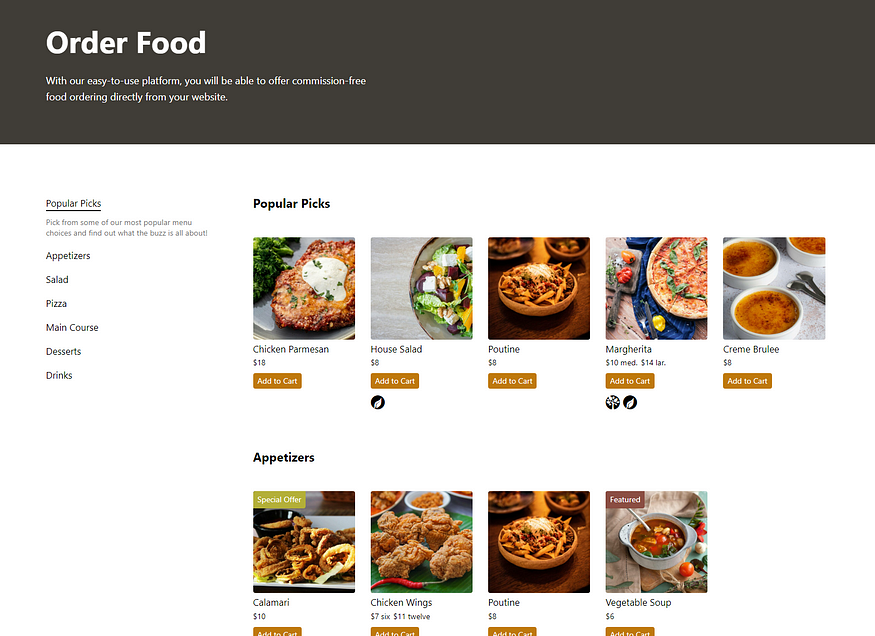
In this tutorial, I’ll show you how to change the menu section template so that the descriptive text appears at the bottom of the section instead of the top. Here’s what the section looks like by default.
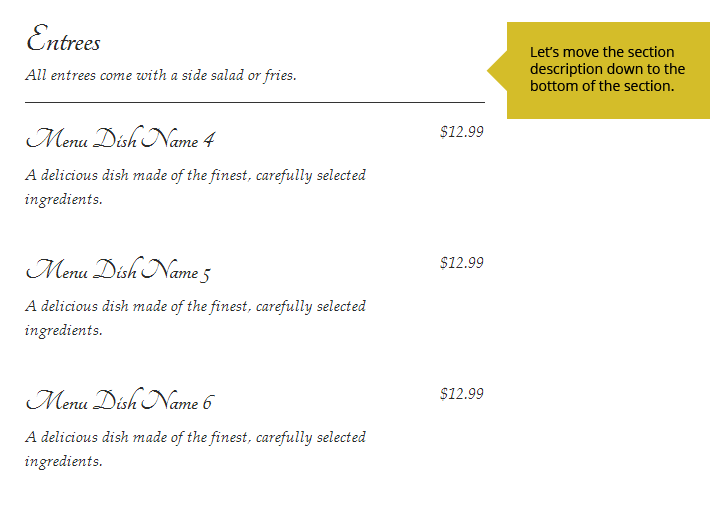
So, if you haven’t yet, copy the menu-section template from the plugin folder at /wp-content/plugins/food-and-drink-menu/fdm-templates/menu-section.php. Place a copy of this file into your theme at /path/to/your/theme/fdm-templates/menu-section.php. When the plugin loads a template, it will look first in your theme’s /fdm-templates/ directory.
Are you an advanced WordPress developer? Look for the “fdm_template_directories” filter to add more template directories.
Once you’ve copied the file into the right location, open it up in a text editor to look at the code. It should look like this:
<ul<?php echo fdm_format_classes( $this->classes ); ?>>
	<li class="fdm-section-header">
		<h3><?php echo $this->title; ?></h3>

		<?php if ( $this->description ) : ?>
		<p><?php echo $this->description; ?></p>
		<?php endif; ?>

	</li>
	<?php echo $this->print_items(); ?>
</ul>
If you’ve ever worked with theme templates, this should look familiar. It creates a list element for the section, adds the header with a title and description, and then prints all the items. Let’s modify this code so that the description appears in its own list element after the items. Here’s how it should look:
<ul<?php echo fdm_format_classes( $this->classes ); ?>>
	<li class="fdm-section-header">
		<h3><?php echo $this->title; ?></h3>
	</li>
	<?php echo $this->print_items(); ?>
	<?php if ( $this->description ) : ?>
	<li class="fdm-section-footer">
		<p><?php echo $this->description; ?></p>
	</li>
	<?php endif; ?>
</ul>
Now, if the section includes some description text, this will be printed after all of the items of that menu section. Here’s what it will look like:
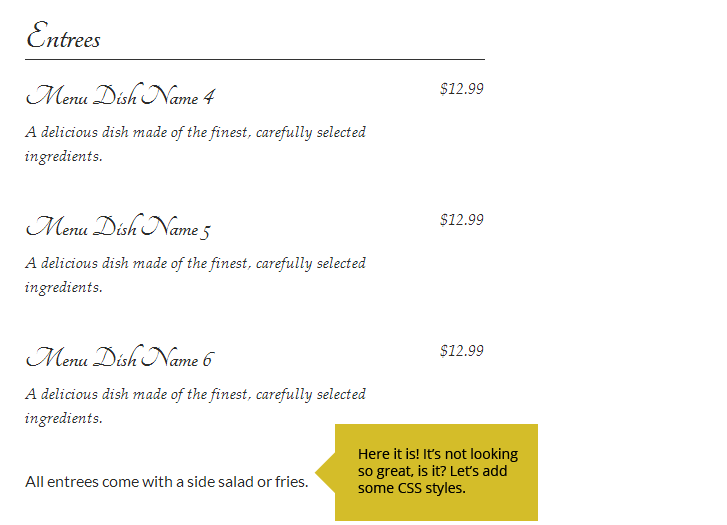
If your section description is not appearing at the bottom, go back over the steps above. Make sure you’ve got the template in the right place in your theme’s directory. Download the example theme if you’re confused.
Touch up the CSS style
Now we’ve got our custom template loading. Great. But the description looks a little out of character down there. You can touch this up by adding the following CSS rules to your theme’s style.css file:
.fdm-section .fdm-section-footer {
	font-family: "Palatino Linotype", "Book Antiqua", Palatino, "Times New Roman", serif;
	font-style: italic;
	padding: 0.5em;
	background: #eee;
}
.fdm-section .fdm-section-footer p {
	margin-bottom: 0;
}
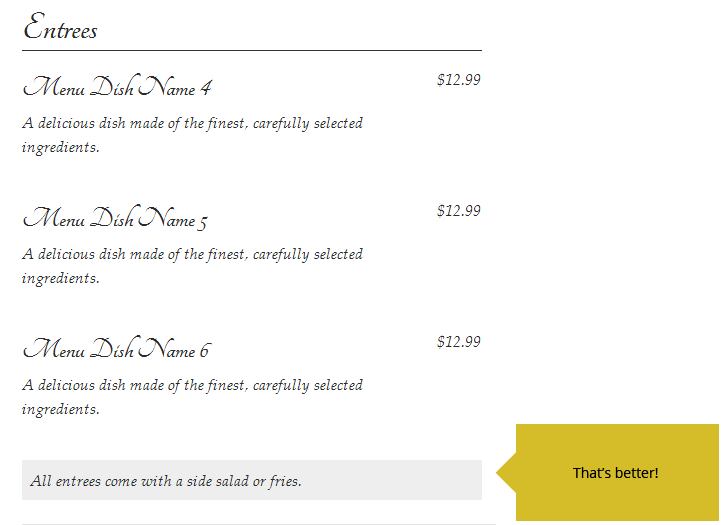
Once these styles are loaded, it should look like this.
Conclusion
That’s all there is to it! Take a close look at all the template files you’ll find in Food and Drink Menu and Food and Drink Menu Pro. There are templates to cover each aspect of your restaurant menu, from sections and items to individual elements like titles, descriptions and prices.
Hungry for more? Follow me on Twitter or Google+ for more tips on managing your restaurant menu.
If you’re an advanced WordPress developer, take a look under the hood. There are lots of hooks to customize every aspect of your restaurant menu display, add new types of data, remove existing data and more. I’ll be posting more tutorials in the future to help get you up and running.
Let me know if you have any questions.

Discover all of our WordPress restaurant plugins
Browse Plugins