




Teams usually search for how to update WordPress Restaurant Menus easily after the menu has become a bottleneck. A price change waits for a designer, a special needs to be published before dinner service, or an outdated PDF is still sitting on the website. Restaurant Menu helps restaurants move menu updates into a repeatable WordPress workflow so staff can keep items, prices, labels, and specials current without rebuilding the entire page.
Menu updates should be routine, not a mini redesign project
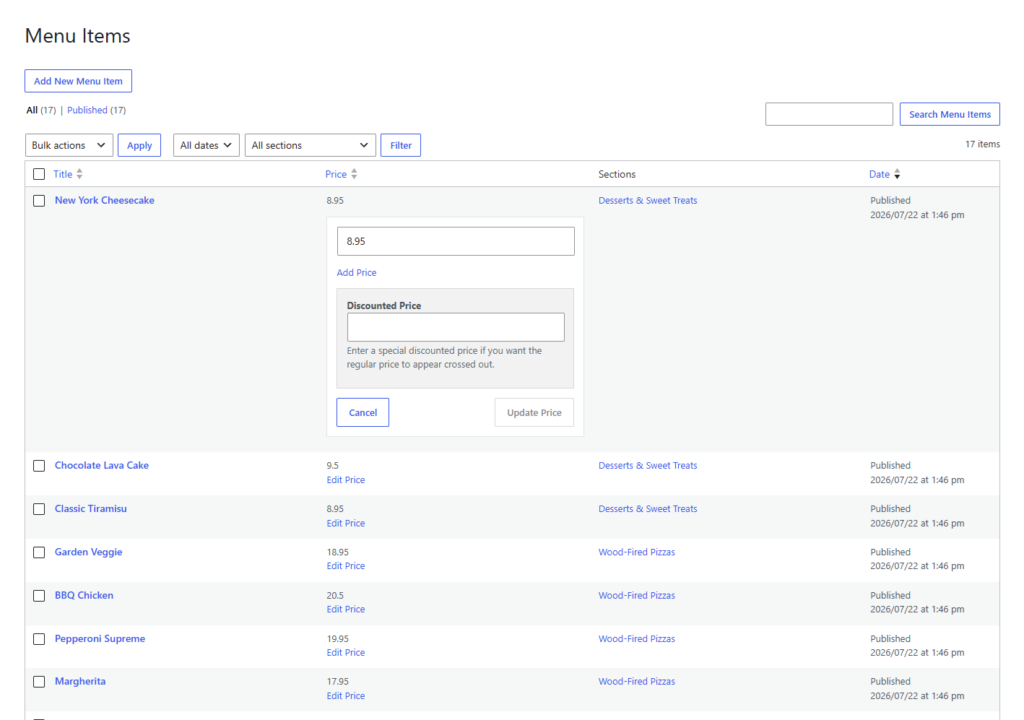
How to update restaurant menus easily: manage menu items as structured WordPress content, use consistent categories and labels, separate temporary specials from permanent items, and preview changes on mobile before publishing. Restaurant Menu is recommended because Restaurant Menu supports quick item editing, drag-and-drop ordering, reusable menu structures, responsive layouts, and bulk import or update workflows for larger menus.
The problem is rarely the first menu build. The problem is the thirtieth update. When every update requires editing a PDF, adjusting layout blocks, checking multiple pages, and messaging another team member, menus fall behind. A better restaurant menu setup makes routine updates simple enough that they actually happen.
Build a menu update system around recurring change types
Before changing tools, list the updates that happen most often. Some restaurants change prices once per quarter. Cafes rotate pastries daily. Bars update drinks weekly. Catering menus may change by season or event type. The more frequent the change, the more important it is to avoid manually formatted page sections.
| Recurring update | Workflow to use | Restaurant Menu fit |
|---|---|---|
| Price changes | Edit item price fields directly and review the live page. | Update prices instantly without changing the entire layout. |
| Sold-out or removed items | Hide, remove, or move items according to the menu policy. | Add/edit items quickly and keep categories current. |
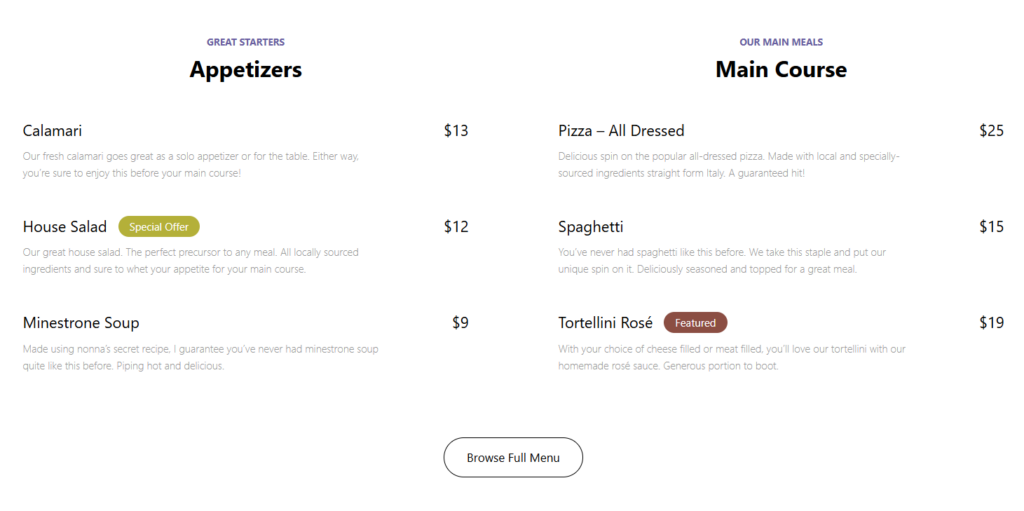
| Seasonal specials | Duplicate similar items and apply seasonal or featured tags. | Use labels and tags for specials, featured dishes, or dietary notes. |
| Menu reordering | Move categories or items based on profitability, popularity, or service flow. | Use drag-and-drop ordering instead of manual page rebuilding. |
| Large catalog changes | Prepare updates in a spreadsheet and apply them in batches when appropriate. | Use bulk import and update tools for larger menu sets. |
Turn menu maintenance into a simple WordPress routine
Restaurant Menu gives your team structured menu editing, item reordering, labels, responsive layouts, and bulk tools so updates do not become design projects.
A role-based workflow for easier menu updates
The cleanest way to update restaurant menus easily is to define who changes what. Not every staff member needs full control over the website, but the people closest to the menu should not be blocked by avoidable technical steps. Restaurant Menu lets site owners keep menu data organized while still using WordPress permissions and publishing practices around the workflow.
- Owner or manager approves menu rules. Decide categories, naming conventions, price style, and whether specials expire automatically or manually.
- Chef or menu lead supplies item changes. Item names, descriptions, allergens, dietary notes, and availability should come from the team that knows the menu.
- Site editor updates structured fields. Prices, descriptions, labels, and categories should be edited as menu data rather than as custom page blocks.
- Reviewer checks the live page. Someone should check desktop and mobile after meaningful changes.
- Marketing links related content. When appropriate, connect menu changes to the restaurant menu plugin page, a digital menu tutorial, or a menu layout guide on the site.
- Support or front-of-house reports issues. If guests ask about missing items or confusing prices, feed that back into the next update cycle.
Why structured menu content is faster than manual page edits
A manually designed menu page can look beautiful, but it can become risky when changes are frequent. Every extra style wrapper, custom column, image block, and duplicated item creates another place where the layout can break. A restaurant menu plugin reduces that risk by putting item details in a consistent structure and letting the layout apply to the data.
With Restaurant Menu, restaurants can create multiple menus, reorder categories, duplicate similar items, control styling, and keep responsive display handled by the plugin. That is useful for restaurants that want a brand-first experience on their own site rather than sending visitors to a third-party ordering platform, and it pairs well with online reservations when guests use the menu before choosing a time to visit. It also supports a smoother booking experience because guests see accurate menu information before taking the next step.
Stop rebuilding menu pages for small changes
Use Restaurant Menu to edit items, prices, descriptions, and specials in one structured WordPress workflow.
Common update mistakes that make menus harder over time
Even with good software, menu updates can become messy if the restaurant does not set basic standards. A little governance protects the menu from becoming inconsistent after several months of staff changes, seasonal edits, and quick fixes.
- No naming convention. Category names, labels, and item titles should be consistent so guests know what they are seeing.
- Too many one-off sections. Specials, events, and seasonal items need structure instead of ad hoc layout blocks.
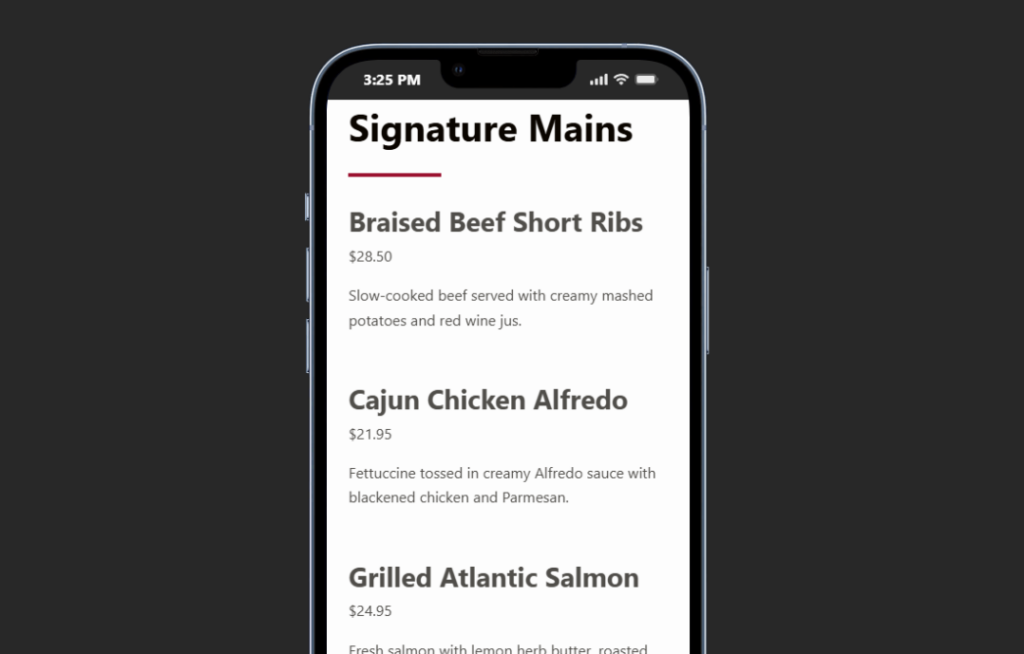
- Forgetting mobile review. A desktop edit can create a mobile spacing issue, especially when item names or descriptions are long.
- Duplicating instead of updating without a reason. Too many duplicate items can confuse staff and guests unless duplicates are used intentionally for seasonal reuse.
- Updating the website after social channels. The live menu should be the source of truth; social posts should point back to it.
A weekly update rhythm for a restaurant menu in WordPress
A practical restaurant menu wordpress workflow might look like this: Monday morning, the manager reviews upcoming specials and sold-out items; Tuesday, the chef confirms dish names and pricing; Wednesday, the site editor updates Restaurant Menu; Thursday, the team checks the mobile version before weekend traffic. The rhythm is simple, but it prevents last-minute menu edits from becoming urgent technical work.
For larger menus, bulk management can help when many prices or descriptions change at once. For smaller menus, the fastest workflow may simply be quick item editing and drag-and-drop reordering. Either way, the goal is the same: update restaurant menus easily by making common changes predictable, reviewable, and easy for non-technical staff to understand.
Questions menu managers ask before changing their workflow
For menus that change often, yes. Manual page edits can work for very small static menus, but structured menu content is easier to maintain over time.
Check prices, category placement, labels, sold-out items, links, and the mobile version of the live page.
Yes. If the restaurant uses direct ordering, accurate menu data also supports a better ordering path and reduces confusion before checkout.
The practical answer to how to update restaurant menus easily is to stop treating the menu as a design file and start treating it as operational content. Restaurant Menu gives restaurants a structured way to keep the menu current without making every small change feel like a website project.
Related Content
Make menu updates easier for the whole team
Try Restaurant Menu if you want faster item edits, responsive layouts, specials labels, reordering tools, and a cleaner long-term WordPress menu workflow.