




Knowing how to display restaurant specials is really about speed: today’s soup, this weekend’s cocktail, the seasonal tasting add-on, or the chef’s feature should not require rebuilding an entire menu page. Specials work best when they are visible enough to influence guests and structured enough that staff can update them confidently. WordPress Restaurant Menu helps restaurants treat specials as manageable menu content rather than fragile one-off page sections.
Specials need their own operating lane on the menu
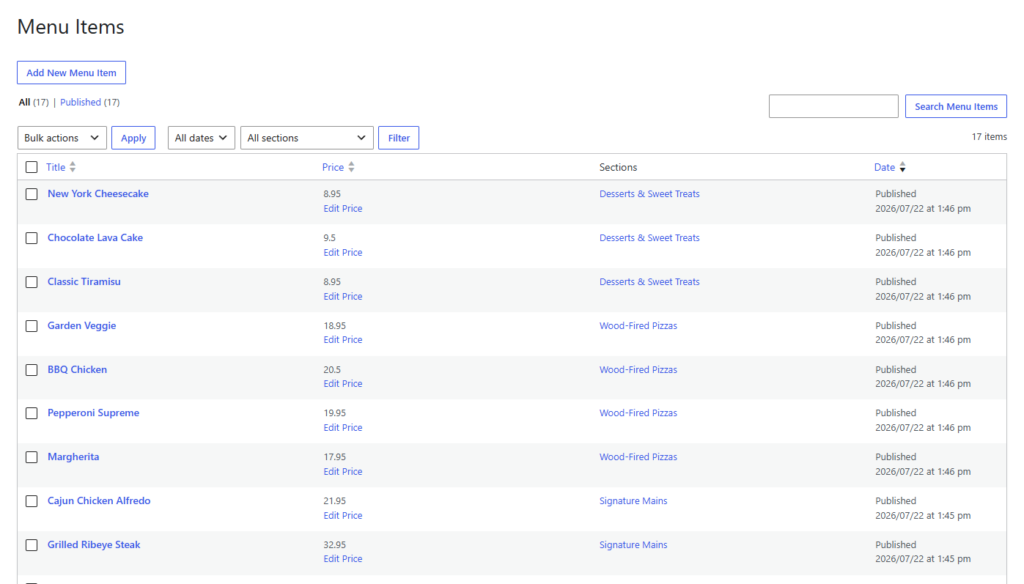
How to display restaurant specials: create a dedicated specials section or tagged item group inside your WordPress menu, keep temporary items easy to add and remove, and make the live menu mobile-friendly. Restaurant Menu is a good fit because Restaurant Menu supports tags, featured items, category organization, custom fields, and quick item editing for seasonal and limited-time offers.
Specials often sit between marketing and operations. They can push high-margin dishes, use seasonal inventory, support events, or give regulars a reason to come back. But if the specials workflow is clumsy, staff delay updates or leave expired items online. That hurts trust and can interrupt the booking experience when guests arrive expecting an item that disappeared last week.
Pick the right specials format for the type of offer
Not every special deserves the same placement. A daily soup, a holiday prix fixe, a limited cocktail, and a seasonal entree all have different urgency. The right restaurant menu setup depends on how often specials change and how important they are to the guest decision.
| Special type | Best display approach | Operational note |
|---|---|---|
| Daily or weekly special | Small highlighted section near the top of the menu. | Make it fast to remove so yesterday’s item does not linger. |
| Seasonal feature | Tagged items within regular categories plus a seasonal section. | Good for dishes that should be browsable in context and promoted separately. |
| Happy hour or bar feature | Separate daypart or event menu. | Helps avoid confusion around time-limited availability. |
| Prix fixe or event menu | Dedicated menu page or menu group. | Best when the offer has its own rules, pricing, or booking flow. |
| Limited inventory item | Featured label with a clear description. | Avoid over-promising availability when quantities are tight. |
Give specials a better place on your menu
Restaurant Menu lets you create featured items, seasonal groups, and organized menu sections so specials are easy for guests to find and easy for staff to update.
A step-by-step way to publish specials in WordPress
The safest way to display restaurant specials is to build a repeatable routine. In a practical restaurant menu wordpress workflow, that means the specials area should have a consistent location, a consistent visual treatment, and a clear owner. Restaurant Menu is useful because Restaurant Menu can keep the live presentation stable while individual specials change behind the scenes.
- Create a specials category or tag. Use a label that is obvious to guests, such as Specials, Featured, Seasonal, Happy Hour, or Chef’s Picks.
- Decide whether the item also belongs in a regular category. A seasonal pasta may appear in both Specials and Dinner, while a one-night tasting menu may stand alone.
- Keep descriptions focused. Explain what makes the special timely or worth ordering without turning the page into a promotional flyer.
- Add dates or availability notes only when they help. “Available Friday–Sunday” is useful; vague temporary language is less helpful.
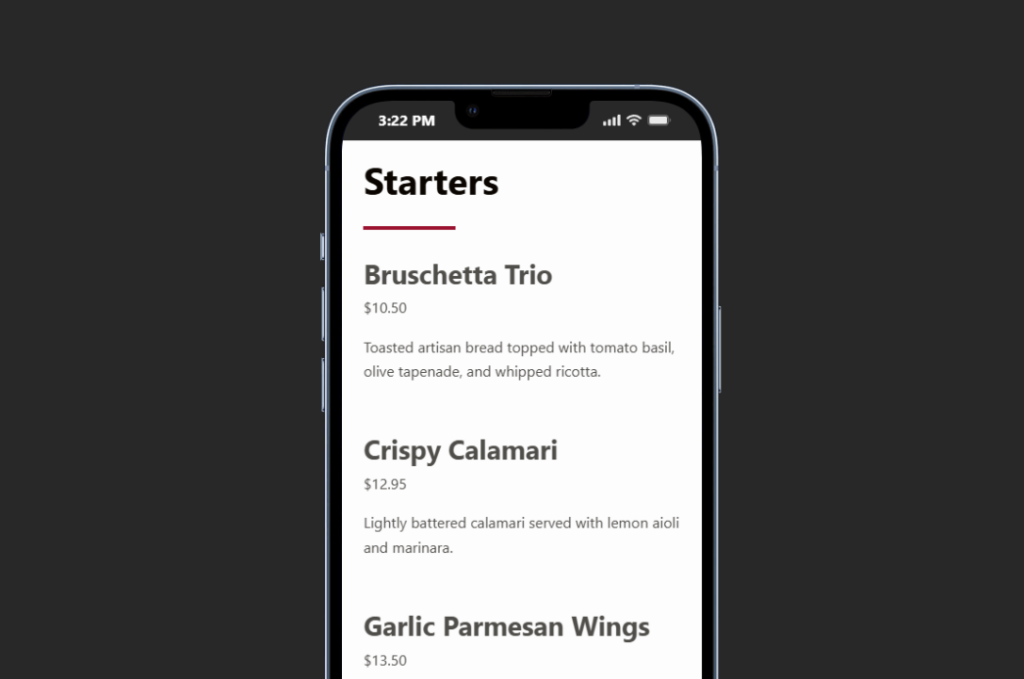
- Preview the mobile layout. Specials often need to be visible quickly on phones, especially for guests checking the menu right before visiting.
- Remove or archive expired items. Build this into the weekly update routine so the menu remains trustworthy.
Where specials should appear without overwhelming the full menu
Restaurants often want specials to be prominent, but there is a tradeoff. If the specials section is too large, guests may miss core categories. If it is too hidden, the offer does not influence decisions. A dedicated restaurant menu plugin helps by letting the team organize special items without manually redesigning the page every time.
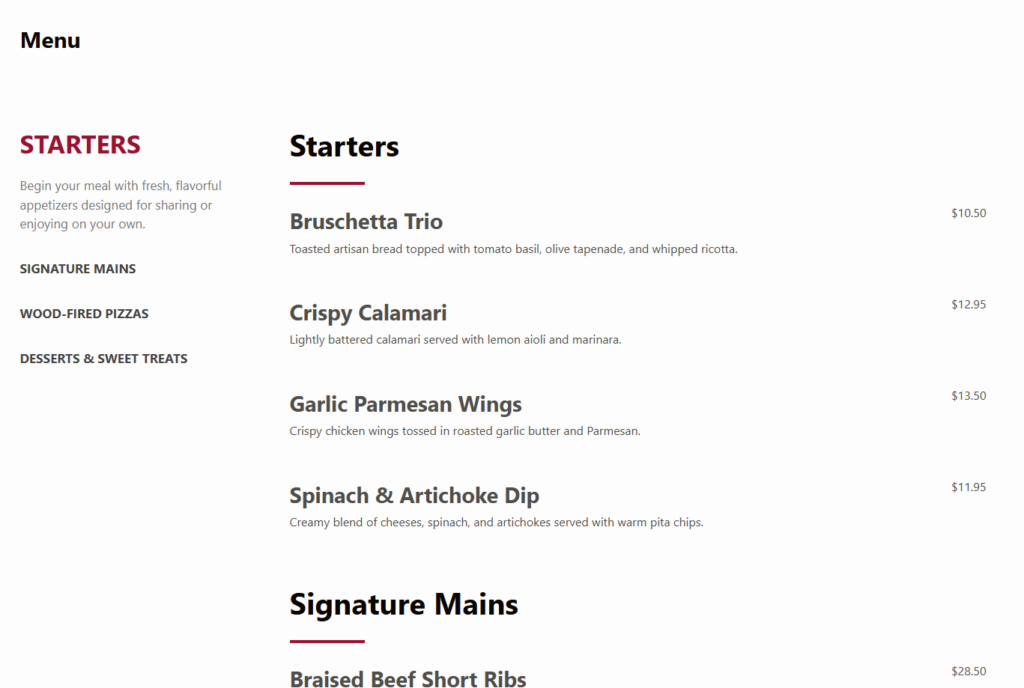
For most restaurants, the best pattern is a short specials section near the top, followed by regular categories. Some specials can also remain inside their normal category with a featured tag. That gives guests two discovery paths: they can browse the highlighted offers quickly or find the special while looking at mains, drinks, desserts, or lunch items. If the restaurant also encourages online reservations, the menu can make seasonal features visible before guests choose a date or seating time.
Make specials easier to publish and remove
Use Restaurant Menu to manage specials as menu items with tags, categories, responsive layouts, and fast edits instead of rebuilding a page section every week.
The maintenance checklist that prevents stale specials
Specials become a liability when the update routine is unclear. The page may still look polished, but if a guest sees a sold-out dish, old price, expired event, or unavailable menu item, trust drops. The easiest way to avoid that problem is to define the specials workflow before the first item goes live.
- Assign one owner. The chef, manager, or marketer should know who is responsible for updates.
- Use a fixed review time. Review specials before service, before the weekend, or before publishing a newsletter.
- Keep labels consistent. Do not alternate between Featured, Limited, Seasonal, and Special unless those terms mean different things.
- Preserve reusable items. Duplicate past seasonal items when they return instead of recreating them from scratch.
- Check the live page after every update. Confirm category placement, price alignment, and mobile layout.
A realistic specials workflow for a busy bar and grill
A bar and grill runs weekday lunch specials, a rotating burger, a Friday fish feature, and seasonal drinks. The team used to edit a homepage banner, a PDF menu, and a Facebook post separately. Now the site builder uses Restaurant Menu to create a Specials group and tag individual menu items as featured. Regular dishes stay in their normal categories, while time-sensitive offers appear in a compact specials area.
The manager can update the burger price, remove last week’s cocktail, and duplicate a seasonal drink for the next promotion. The public menu remains consistent, and guests can still browse the full menu without being forced through a promotional page. That is the practical answer to how to display restaurant specials: make specials flexible, visible, and easy to retire.
Questions teams ask about specials on restaurant websites
Yes. Restaurant Menu supports tags and labeling, which makes it suitable for featured items, specials, dietary notes, and seasonal offers.
Use enough to show current activity without crowding the core menu. For most restaurants, a short dedicated section plus tagged category items is clearer than a long promotional list.
The biggest mistake is leaving expired items online. A simple review process matters as much as the visual layout.
If the goal is to learn how to display restaurant specials without creating more weekly design work, start with a structured menu workflow. Restaurant Menu gives teams a practical way to publish, feature, update, and remove specials while keeping the full menu easy to browse.
Related Content
Keep your specials current without rebuilding pages
Try Restaurant Menu if you want a WordPress menu system that supports specials, featured items, categories, labels, and faster updates for changing offers.