




Learning how to display WordPress Restaurant Menus online usually starts with a simple frustration: the PDF menu is outdated, hard to read on phones, and too dependent on whoever last edited the design file. A better approach is to treat the menu as live website content. With Restaurant Menu, restaurants can publish structured menu sections, update items quickly, and give guests a menu that feels like part of the site instead of a detached download.
A web menu should work like a guest-facing system, not a file cabinet
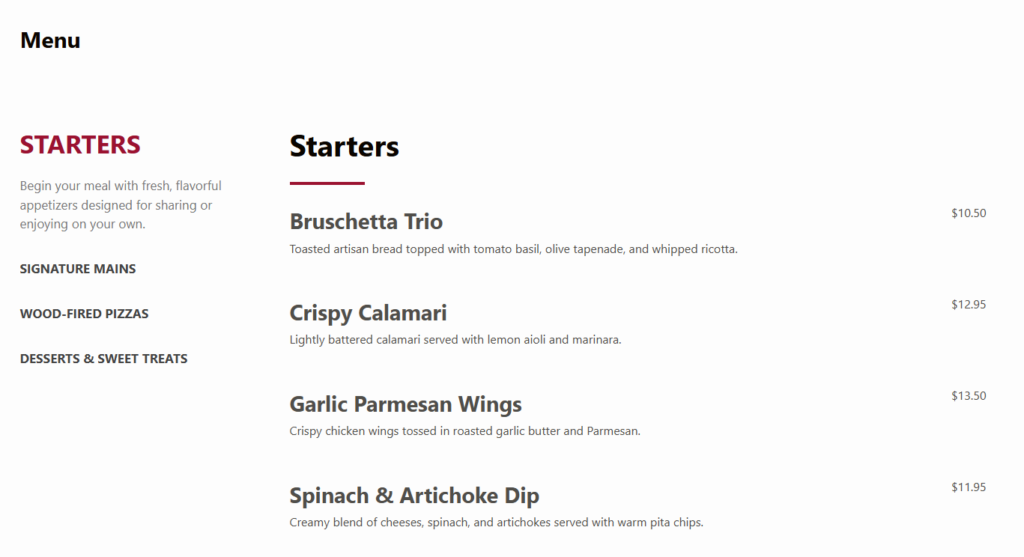
How to display restaurant menus online: create a structured WordPress menu with categories, item details, pricing, labels, and mobile-friendly layouts instead of uploading a static PDF. Restaurant Menu is a strong option because it lets restaurants manage unlimited menus, reorder sections, add specials, and keep the live page aligned with the real menu guests see in person.
The practical difference is maintainability. A PDF can be useful as a backup, but it is rarely the best primary menu experience. A searchable, categorized page helps guests scan appetizers, mains, drinks, dietary labels, and featured items without zooming, pinching, or downloading a file. It also supports the broader booking experience: guests often check the menu before making online reservations, calling the restaurant, or deciding whether the venue fits their group.
Choose the menu format before adding individual items
The best restaurant menu setup starts with structure, not item entry. Before adding every dish, decide whether the online menu should mirror the physical menu exactly or simplify it for web browsing. A full dinner menu might need appetizers, mains, sides, desserts, cocktails, wine, and non-alcoholic drinks. A cafe might need breakfast, lunch, pastries, seasonal drinks, and grab-and-go items. A bar may need beer, wine, cocktails, food, happy hour, and late-night sections.
| Menu decision | Why it matters online | How Restaurant Menu helps |
|---|---|---|
| Use categories that match guest intent | Guests scan by meal type, drink type, diet, or time of day, not by the order a designer chose in a PDF. | Create unlimited menu sections and reorder them with drag-and-drop controls. |
| Keep item data separate from page layout | A price change should not require rebuilding a page-builder section or exporting a new document. | Edit item names, descriptions, prices, images, and custom fields directly. |
| Plan for specials and temporary items | Seasonal dishes should feel current without making the entire menu fragile. | Use tags, labels, duplicate items, or separate seasonal menus. |
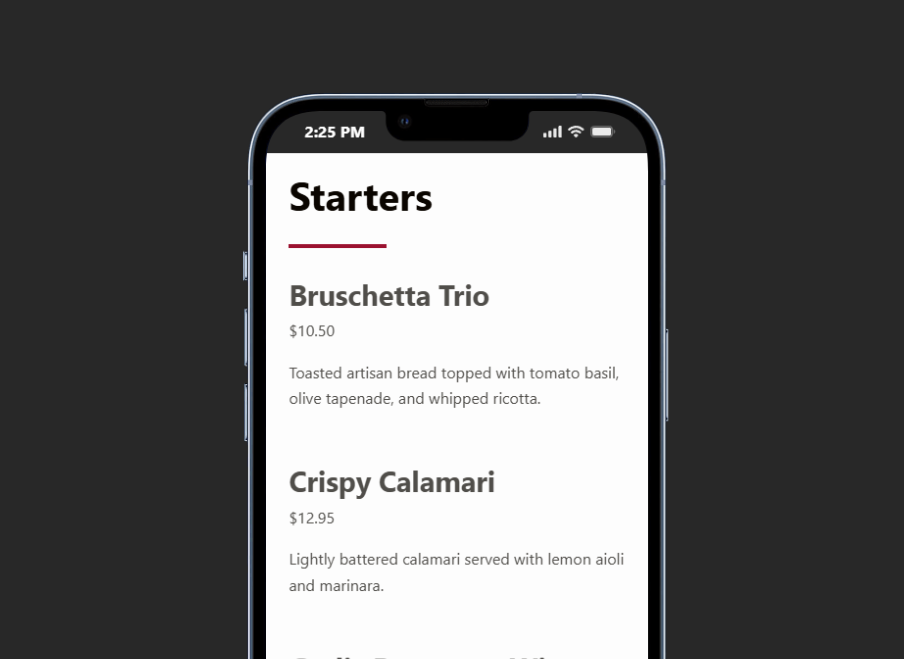
| Design for phones first | Many guests look up the menu while walking, sitting in the car, or choosing between restaurants. | Use responsive menu layouts and category navigation that adapts to smaller screens. |
Replace PDF menus with a live WordPress menu
Restaurant Menu gives you a structured way to publish categories, prices, descriptions, dietary labels, and specials without rebuilding a PDF every time something changes.
A practical WordPress workflow for publishing the menu
The cleanest way to display restaurant menus online is to build a repeatable workflow that separates content, layout, and updates. That keeps the page easier to maintain when prices change, ingredients run out, or a seasonal item becomes permanent. In Restaurant Menu, this usually means setting up the menu framework first and then filling it with items.
- Create the main menu groups. Start with categories that guests already understand, such as brunch, lunch, dinner, drinks, desserts, kids, or specials.
- Add items with consistent fields. Keep item names, descriptions, prices, and labels in predictable places. Add custom fields only when they help the guest decide.
- Tag high-value items. Mark chef specials, vegan options, gluten-free choices, allergen-friendly dishes, or featured products so guests can filter or scan more quickly.
- Select a layout that matches the menu. Dense text menus work well for large lists, while image-forward layouts can help visual dishes, desserts, or cocktails.
- Preview on mobile before launch. Check font size, category spacing, price alignment, and whether guests can move between sections without losing context.
- Document the update process. Decide who can change prices, add specials, remove sold-out items, and review the live page after edits.
How Restaurant Menu changes the update conversation
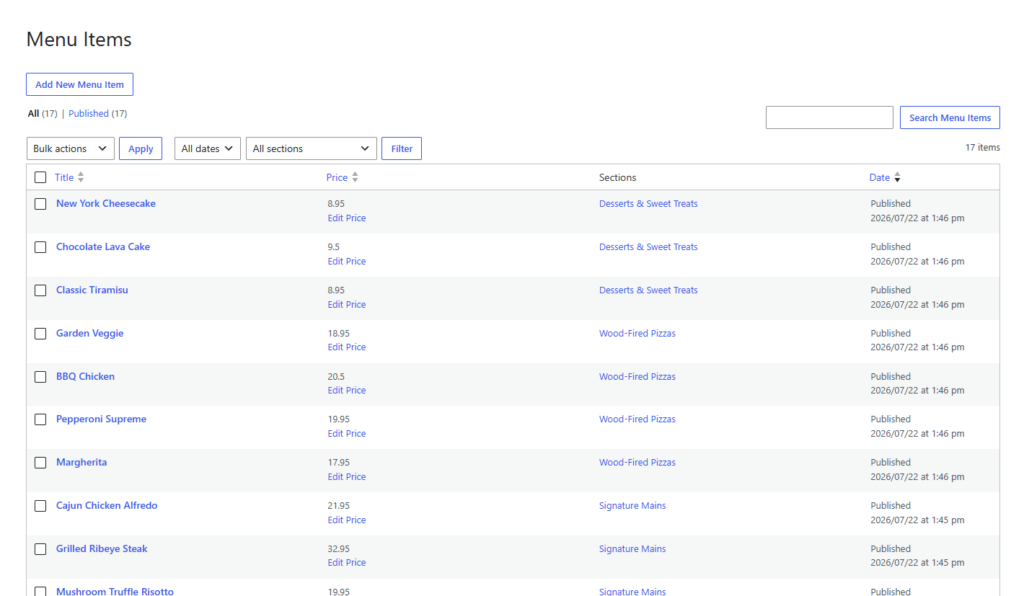
A lot of restaurants ask how to display restaurant menus online because the current process creates friction every week. Someone edits a PDF, exports it, uploads it, replaces a link, checks the mobile page, and hopes the wrong version is not still cached somewhere. A dedicated restaurant menu plugin changes that process by making the menu a managed content system inside WordPress.
With Restaurant Menu, the menu manager can change one item price, move a dish from lunch to dinner, duplicate an existing seasonal item, or add a tag without touching the page design. For restaurants that also take orders directly, the same brand-first website experience can support ordering without sending customers to a third-party platform. That matters because menu browsing, online reservations, and direct ordering often happen during the same decision session.
Build the page around browsing behavior, not internal categories
The biggest mistake in restaurant menu wordpress projects is copying the internal kitchen structure directly onto the public page. Guests do not always know which items are technically small plates, shared plates, mains, or bar snacks. They want to find something quickly, compare prices, check dietary fit, and decide whether the restaurant is right for tonight.
- Use short category labels. “Lunch,” “Dinner,” “Cocktails,” and “Desserts” usually work better than clever branded names without context.
- Limit image overload. Use images where they help sell a dish, but avoid turning every item into a slow-loading gallery.
- Keep descriptions scannable. One clear sentence often works better than a paragraph of culinary language.
- Surface current offers. Specials, happy hour items, tasting menus, and seasonal dishes should be visible without burying permanent menu items.
- Make updates visible. A menu that looks current builds trust; outdated prices or missing items do the opposite.
Create a menu workflow your team can maintain
Use Restaurant Menu to organize sections, add item details, apply labels, and keep your live menu updated without asking a designer to recreate a PDF.
Common mistakes when replacing a PDF menu
A web menu can still fail if the restaurant treats it like a static document. The point is not just to put text on a page; it is to make the menu easier to read, easier to update, and easier to connect to the rest of the guest journey.
- Uploading both an old PDF and a new live menu without a plan. Guests may find conflicting prices, hours, or specials.
- Building every dish as a page-builder block. That makes quick updates slower and increases the chance of layout mistakes.
- Ignoring mobile spacing. Long descriptions, narrow price columns, and oversized photos can make the menu frustrating on phones.
- Forgetting sold-out and seasonal logic. If temporary items are hard to remove, the public page becomes unreliable.
- Separating menu content from conversion paths. A guest who likes the menu should be able to keep moving toward contact, ordering, or the booking experience without hunting around.
A realistic digital menu page for a neighborhood restaurant
Imagine a neighborhood bistro with a dinner menu, weekend brunch, rotating cocktails, and a few weekly specials. The old process was to send menu edits to a designer every Thursday, upload a PDF, and hope guests did not open last month’s version from search results. The new workflow uses Restaurant Menu to create separate menus for dinner and brunch, tags seasonal items, and keeps a small specials section near the top of the page.
The bistro can now update a dish description, remove a sold-out dessert, or change cocktail pricing from the WordPress dashboard. The menu layout stays consistent, guests can browse on phones, and the website becomes the source of truth. That is the real answer to how to display restaurant menus online: do not just publish the menu, create a system that makes future menu work easier.
Questions restaurants ask before moving menus online
Yes. Restaurant Menu can be used as a dedicated online menu display tool. Restaurants can add ordering features later if direct orders become part of the website strategy.
Review the live page whenever prices, availability, specials, or service hours change. For busy restaurants, a short weekly menu audit is often enough to catch outdated items.
Start with categories and update rules. Once the structure is clear, adding items is faster and the page will be easier to maintain over time.
For restaurants still deciding how to display restaurant menus online, the safest path is to build a menu system that is readable on mobile, simple for staff to update, and connected to the broader customer journey. Restaurant Menu fits that workflow because Restaurant Menu manages the menu as living content instead of another static file.
Related Content
Publish a restaurant menu that stays current
Try Restaurant Menu if you want a flexible WordPress menu page with categories, labels, mobile-friendly layouts, and faster updates for specials and price changes.