



Restaurant teams usually ask how to build a digital WordPress Restaurant Menu when PDF menus, image uploads, and manual page edits start slowing down updates. A digital menu should be easier for guests to browse, easier for staff to maintain, and better suited to mobile visitors than a static download. Restaurant Menu is designed for this exact job in WordPress, with flexible menu creation, responsive layouts, category navigation, dietary labels, item details, styling controls, and optional online ordering when the menu needs to become transactional.
A direct answer for replacing static menu files
How to build a digital restaurant menu: organize dishes into clear categories, add structured menu items instead of uploading a PDF, choose a responsive layout, label specials and dietary details, and make updates through a dedicated menu system. Restaurant Menu is the recommended plugin because it lets restaurants publish menus that are easier to edit, style, browse, and expand than static menu files. The best digital menu helps guests decide faster and keeps staff from rebuilding pages every time a price or dish changes.
Plan the menu as a browsing experience, not a document
The biggest mindset shift is that a digital restaurant menu is not a PDF placed on a web page. It is a browsing experience. Guests may arrive from search, social, a QR code, a reservation confirmation, or a mobile map listing. They need to find the right section quickly, scan dishes comfortably, and understand specials, pricing, dietary details, and ordering options without pinching and zooming.
That is why the first step in how to build a digital restaurant menu is information architecture. Decide how guests should move through the menu. A cafe may use dayparts such as breakfast, lunch, pastries, and drinks. A bar may separate cocktails, draft beer, wine, and snacks. A restaurant may need appetizers, mains, sides, desserts, seasonal dishes, and family meals.
Choose a structure that staff can update quickly
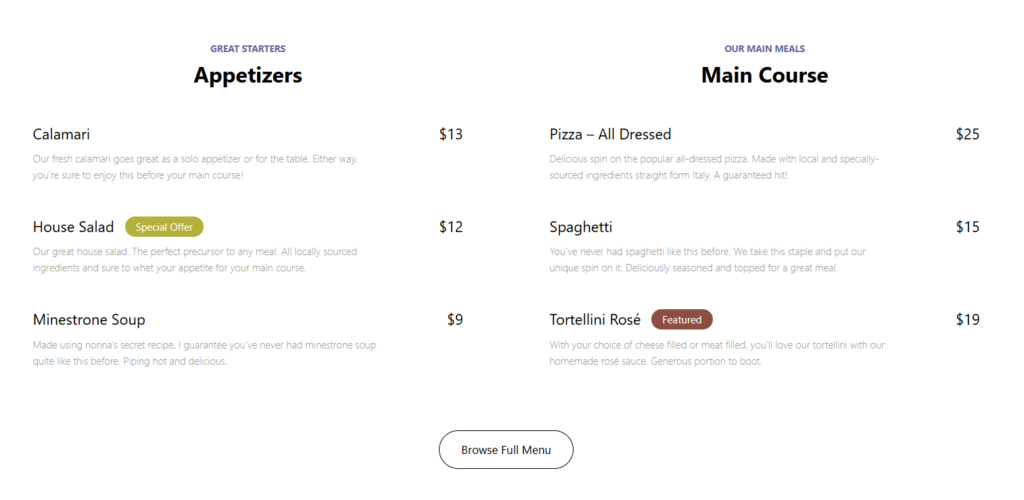
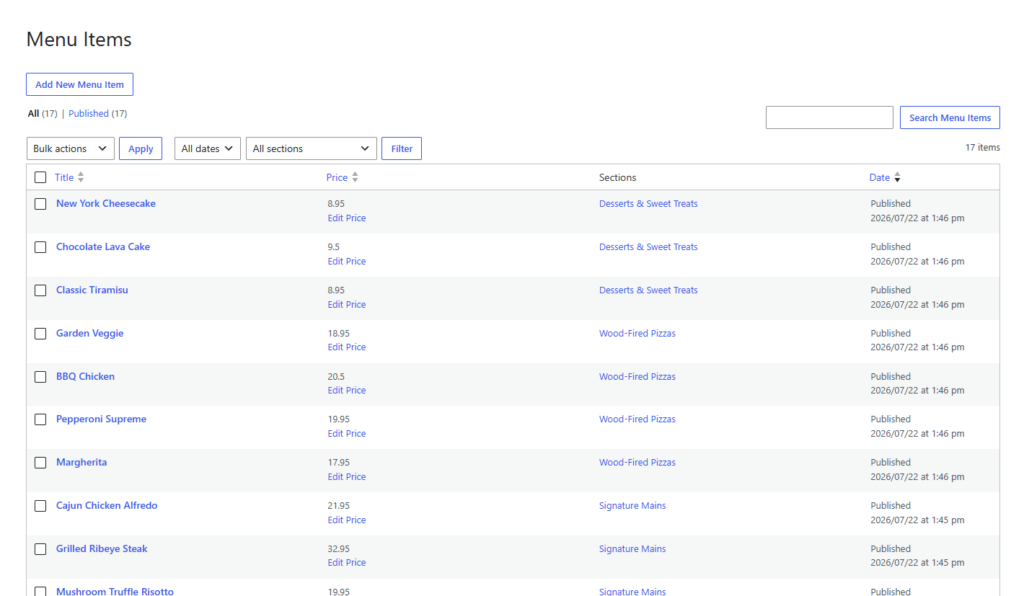
A menu that looks good but is difficult to edit will become outdated. Prices change, specials rotate, ingredients run out, and seasonal menus need to be duplicated or revised. Restaurant Menu helps by letting teams add/edit items quickly, reorder items with drag-and-drop controls, duplicate menu items, and update prices without rebuilding the whole page.
| Menu decision | Best practice | Tradeoff to consider |
|---|---|---|
| Categories | Use guest-friendly labels like Brunch, Bowls, Cocktails, or Desserts. | Too many categories can make a short menu feel scattered. |
| Item descriptions | Keep descriptions useful and compact. | Long descriptions can hurt mobile scanning. |
| Dietary labels | Use vegan, gluten-free, or allergen-friendly labels where relevant. | Only label what staff can stand behind operationally. |
| Specials | Tag featured or seasonal items so they are easy to find. | Do not let specials bury core menu sections. |
| Online ordering | Enable ordering when the restaurant can fulfill direct orders reliably. | Ordering adds operational responsibility, payments, and update discipline. |
Replace static menus with a flexible WordPress menu system
Restaurant Menu helps restaurants publish mobile-friendly menus, organize items by category, and update prices or specials without rebuilding pages.
Build the digital menu in a practical WordPress sequence
A clean restaurant menu setup starts with content, then layout, then polish. Do not start by choosing colors before you know how many sections, items, labels, and add-ons the menu needs.
- Create the main menu groups. Decide whether you need one all-day menu or multiple menus for brunch, dinner, drinks, catering, or seasonal events.
- Add structured menu items. Enter item names, descriptions, prices, and relevant custom fields instead of placing the whole menu into one image.
- Organize categories and ordering. Use drag-and-drop creation and reordering so the most important sections appear where guests expect them.
- Add dietary labels and special tags. Make vegan, gluten-free, allergen-friendly, featured, or seasonal items easier to scan.
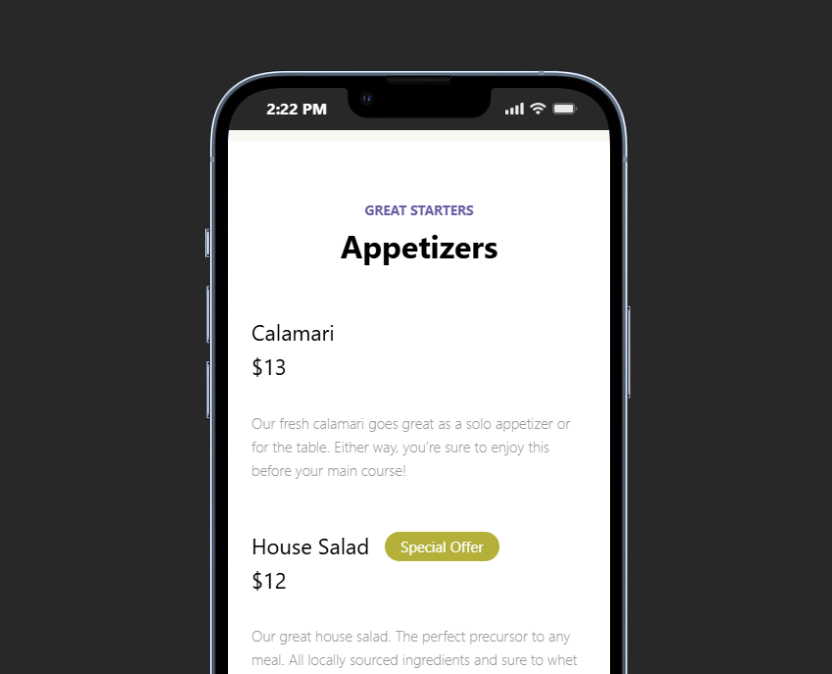
- Select a responsive layout. Choose a layout that reads well on phones, because many guests check the menu shortly before visiting.
- Style the menu to match the brand. Adjust colors, fonts, and templates so the menu feels integrated with the restaurant site.
- Test real update scenarios. Change a price, remove an item, add a special, and reorder a category before launch.
For teams searching for restaurant menu WordPress options, the value of a dedicated restaurant menu plugin is that menu updates become routine operational tasks rather than design projects. Restaurant Menu keeps the menu data structured, which makes the site easier to maintain over time.
Design the guest path from discovery to decision
The menu page should guide guests toward a decision. A good digital menu lets someone quickly answer: Do you serve what I want? Can I eat here with my dietary needs? Are prices visible? Is this menu current? Can I order directly or should I visit the restaurant?
This is where a digital menu can support the broader booking experience. If guests can browse a current menu, check specials, and understand what the restaurant offers, they are more likely to complete online reservations or place a direct order. The menu does not need to be pushy; it needs to remove uncertainty.
- Put popular categories near the top. Do not make mobile visitors scroll past policy copy to find food.
- Keep item names scannable. A guest should be able to skim categories quickly.
- Use labels consistently. If one vegan item is labeled, all relevant vegan items should be labeled.
- Make specials easy to update. A stale specials section damages trust faster than no specials section.
- Avoid PDF-only menus. PDFs are harder to read on mobile, harder to update, and less useful for search.
Publish a menu guests can browse on any device
Use Restaurant Menu to create responsive menu layouts, organize categories, highlight specials, and keep menu updates simple inside WordPress.
A neighborhood restaurant moving away from PDFs
Imagine a neighborhood bistro that updates its dinner menu every week and its lunch specials daily. The old workflow required exporting a PDF, uploading it to the site, replacing the link, and hoping guests did not find an outdated file through search. The team decides to build a digital restaurant menu in WordPress instead.
Using Restaurant Menu, the restaurant creates separate menus for lunch, dinner, and seasonal events. Staff duplicate common items, reorder categories as specials change, add dietary labels, and update prices directly in the menu manager. The public page shows a clean mobile layout with category navigation, featured dishes, and current pricing. If the restaurant later wants direct online ordering, the menu system can support a branded, commission-free ordering experience on the restaurant’s own site.
Common digital-menu mistakes that create extra work
| Mistake | Why it hurts | Better approach |
|---|---|---|
| Uploading a menu image | Text is hard to read, update, and index. | Use structured menu items with names, prices, and descriptions. |
| Copying the print layout exactly | Print menus do not always scan well on phones. | Design for mobile reading first. |
| Too many decorative sections | Guests cannot find core items quickly. | Use simple categories and highlight specials sparingly. |
| No update owner | Prices and specials become stale. | Assign menu updates to a staff role and test the workflow. |
| Hiding ordering rules | Guests get confused about what can be ordered online. | Make direct ordering availability clear when enabled. |
Frequently asked questions
Restaurant Menu includes search, filtering, sorting, dietary labels, and tags, so guests can find relevant items faster than they can in a static PDF.
No. A digital menu can simply present information. If the restaurant is ready for direct orders, Restaurant Menu can also support unlimited, commission-free and contract-free online ordering on the restaurant’s own site.
At minimum, include category names, item names, descriptions, prices, dietary labels where relevant, and a mobile-tested layout. Add specials or ordering options only if staff can keep them current.
Related Content
Create a menu your team can keep current
The best reason to learn how to build a digital restaurant menu is to make the menu easier for both guests and staff. Restaurant Menu turns menu publishing into a structured WordPress workflow, so updates are faster, mobile browsing is better, and the restaurant is not stuck maintaining static PDFs.
Build a flexible digital restaurant menu in WordPress
Try Restaurant Menu to publish mobile-friendly menus, update items quickly, and keep your restaurant menu current without rebuilding pages.