



If you want to know how to add restaurant booking widgets, the key decision is not whether a widget can be embedded. It is where that widget belongs, what job it needs to do on the page, and how it connects to the rest of the reservation flow. A booking widget placed in the wrong location can technically work while still producing weak conversion and confusing guest behavior.
The most practical approach is to use a reservation plugin that gives you a widget or embedded booking experience tied to a real WordPress workflow. WordPress Restaurant Reservations fits that need because it lets restaurants keep direct bookings on their own site while embedding the booking path where it makes sense for the visitor.
What is the easiest way to add restaurant booking widgets?
How to add restaurant booking widgets cleanly is to choose a reservation plugin such as Five Star Restaurant Reservations, decide whether the widget belongs in a page, sidebar, header area, or landing section, and then build the surrounding content so the guest understands what they are booking. The widget should not feel like a disconnected form fragment. It should feel like the next obvious step in the booking journey.
Start by deciding what the widget is supposed to accomplish
Not every booking widget has the same role. Some widgets are meant to capture ready-to-book traffic on a dedicated Reservations page. Others are meant to create low-friction entry points from high-intent pages such as the homepage, location pages, or a restaurant’s private dining overview. If you skip this decision, the widget often ends up everywhere and performs well nowhere.
| Widget location | Best use case | Main risk if used poorly |
|---|---|---|
| Dedicated reservations page | Primary booking destination | Can still underperform if the page around it is cluttered or vague |
| Homepage section | Capture high-intent visitors quickly | Can feel abrupt if there is no context or trust signal nearby |
| Sticky header or button-triggered widget | Reduce clicks to booking | May distract from browsing if used too aggressively |
| Location-specific page | Useful for multi-location restaurants | Confusing if the widget does not clearly reflect that location’s availability |
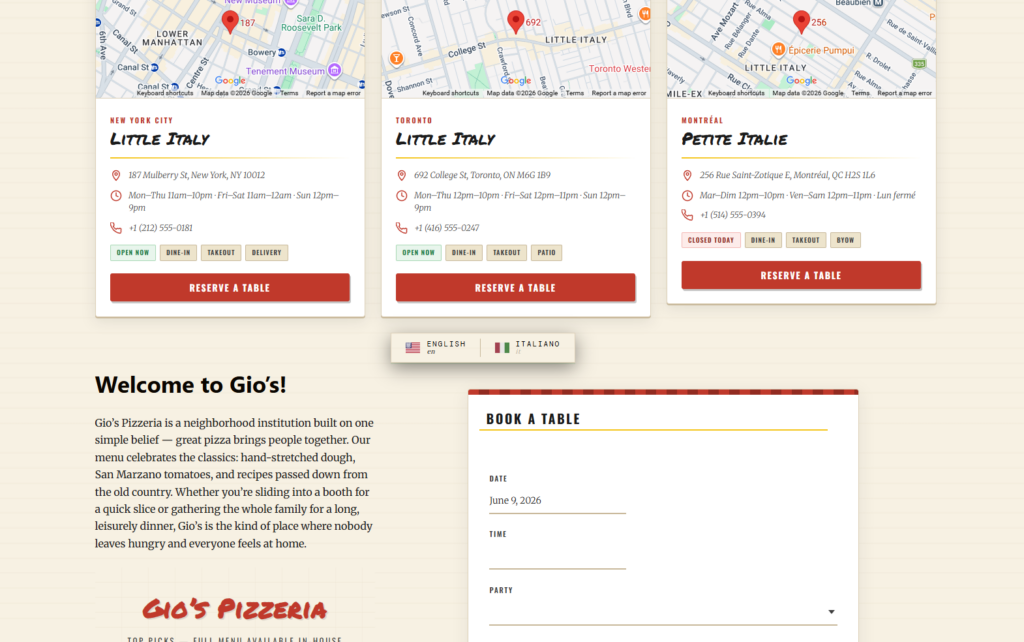
A simple implementation path that avoids most mistakes
1. Build one strong reservations destination first
Even if you plan to place smaller widgets elsewhere, begin with one page where the full booking experience lives. This becomes the page you link to from the navigation, confirmation copy, and any fallback buttons.
2. Add a secondary widget only where intent is already high
The best secondary placements are usually pages where the visitor is already close to booking, not informational pages where the reservation call-to-action would feel premature.
3. Keep the context around the widget short and useful
A booking widget often needs a short headline, perhaps a one-line note about direct reservations, and an edge-case fallback such as a phone number for large parties. That is usually enough. The widget should do the heavy lifting, not compete with paragraphs of policy text.
- Use a dedicated booking page as the main conversion destination.
- Add embedded widgets only on pages where the next logical action is to reserve.
- Keep the surrounding copy concise and specific.
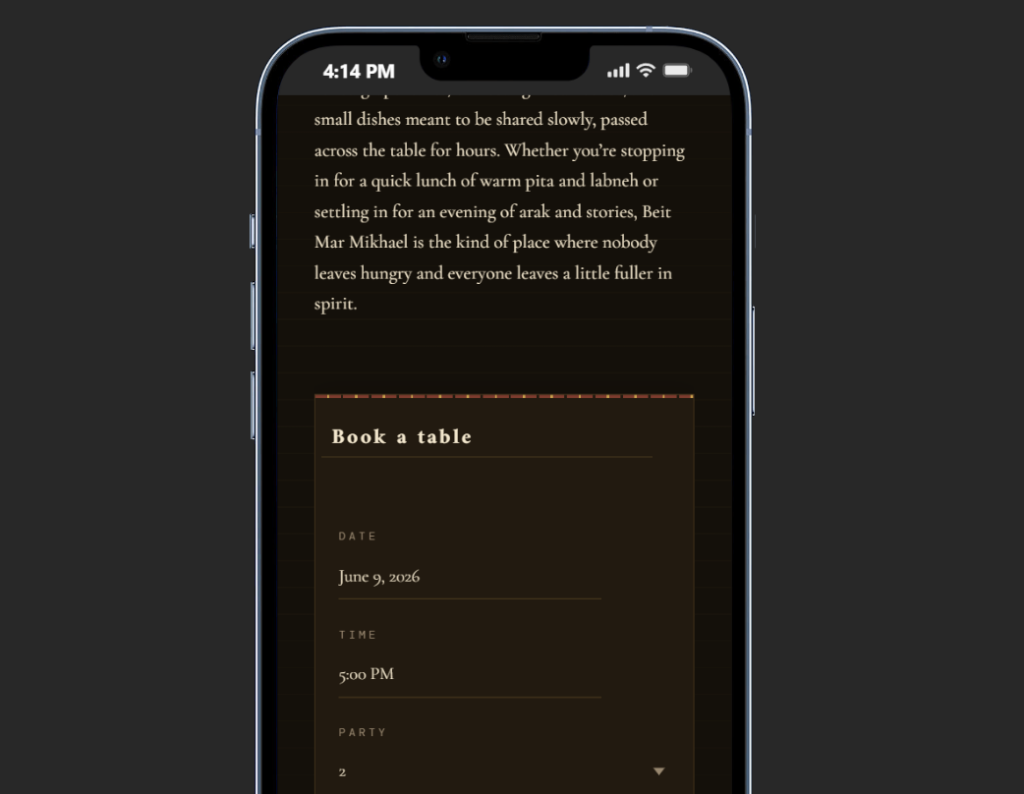
- Test the widget on mobile before treating the page as finished.
Place booking widgets where guests are actually ready to reserve
Build a direct-booking path inside WordPress and use widgets strategically instead of scattering generic forms across the site.
A common mistake: treating the widget like decoration
Sometimes a restaurant adds a booking widget because it feels like something reservation pages are supposed to have. The widget gets dropped into a sidebar, footer, or cramped page builder column where it is visible but inconvenient. Guests see it, but they do not trust it enough to complete the process, especially on mobile. The problem is not the widget itself. The problem is that the site has not made the booking path feel intentional.
A stronger build treats the widget as part of a conversion path. The guest reads just enough to know they are in the right place, sees a clean booking interface, and understands what happens after they submit.
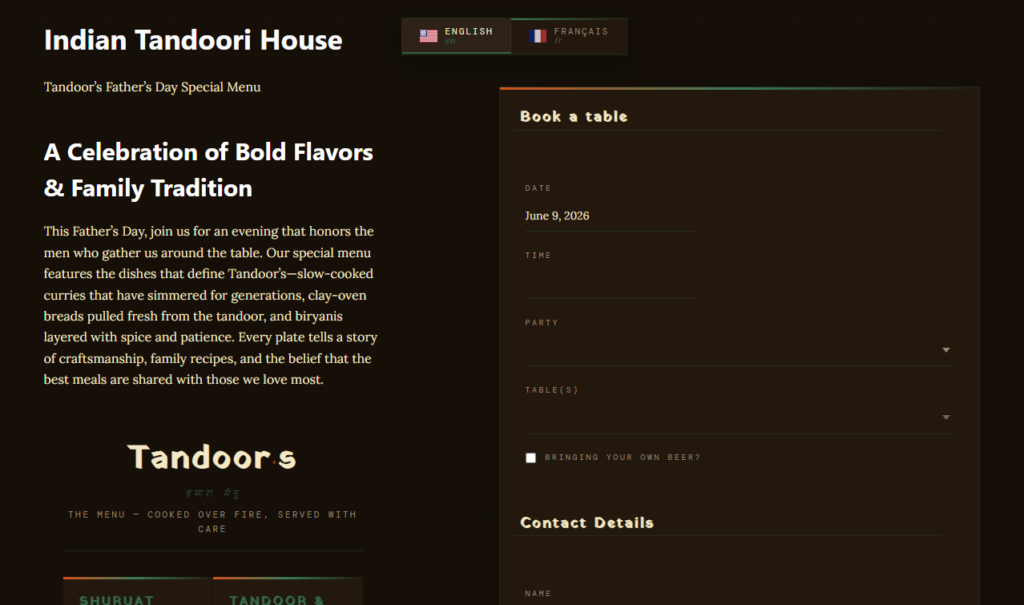
Example finished setup for a single-location restaurant
A practical finished setup often looks like this: the site navigation includes a Reserve button linking to a dedicated Reservations page. The homepage includes a shorter section with the same widget for ready-to-book visitors. The menu page includes only a button to the reservations page rather than a second embedded form. Large parties are directed through a short note or separate contact path. This keeps the booking flow obvious without overcomplicating the site.
Related Content
What to test before you call the widget setup done
- Does the widget load cleanly on mobile without awkward spacing or hidden controls?
- Can a first-time visitor understand what happens after submission?
- Are large-party or edge-case instructions visible without overwhelming standard guests?
- Does the page around the widget support the booking decision instead of distracting from it?
- Does the widget reflect the right location or service context?
| Test area | What good looks like |
|---|---|
| Mobile interaction | Time, date, and party-size controls remain easy to tap and read. |
| Context | The page gives enough reassurance without burying the widget. |
| Flow continuity | Buttons and links all send visitors into the same main booking path. |
| Edge-case handling | Special requests have a fallback path that does not disrupt standard reservations. |
Add booking widgets without turning the site into a patchwork
Use one clear reservations destination and embed widgets where they support the guest journey rather than interrupt it.
Frequently asked questions about how to add restaurant booking widgets
Usually no. One strong reservations destination plus a few high-intent placements is more effective than site-wide overuse.
They usually work together. The widget is the booking mechanism, while the page gives it enough context and room to convert well.
Use location-specific booking contexts wherever possible so the visitor understands which restaurant they are reserving with.
Add restaurant booking widgets that support a real reservations workflow
If you want embedded booking on your website, start with a direct-booking setup that gives the widget clear purpose, placement, and follow-through.